
Introduction
Before CSS Grid and Flexbox, frontend developers laid out web pages using floats and clearfix hacks. A three-column layout required floating each column, clearing the container, and praying that a single tall image in one column would not collapse the entire layout. Centering something vertically — a task so fundamental that it is hard to believe it was ever difficult — required arcane tricks involving absolute positioning, negative margins, or the infamous display: table-cell workaround.
Flexbox arrived in modern browsers around 2015 and was transformative. For the first time, CSS had a layout system designed specifically for the flexible, content-first components that make up user interfaces. Vertically centering an element became two lines. Distributing space between items in a row became one property. Reordering items visually without touching the HTML became possible. The relief felt by the frontend community was palpable.
CSS Grid followed, reaching stable cross-browser support in 2017. Where Flexbox excelled at flowing content in one dimension, Grid provided a two-dimensional coordinate system for the first time — letting you define both rows and columns explicitly and place elements precisely within that structure. Page-level layouts that had previously required multiple nested flexbox containers could now be expressed in a single clean ruleset.
Eight years later, the question “CSS Grid vs Flexbox — which should I use?” remains one of the most frequently searched CSS topics on the web. The confusion is understandable: both solve layout problems, both are modern and well-supported, and both can sometimes achieve the same visual result. This guide provides a definitive, practical answer — backed by clear rules and real examples.
Quick Answer: Grid vs Flexbox at a Glance
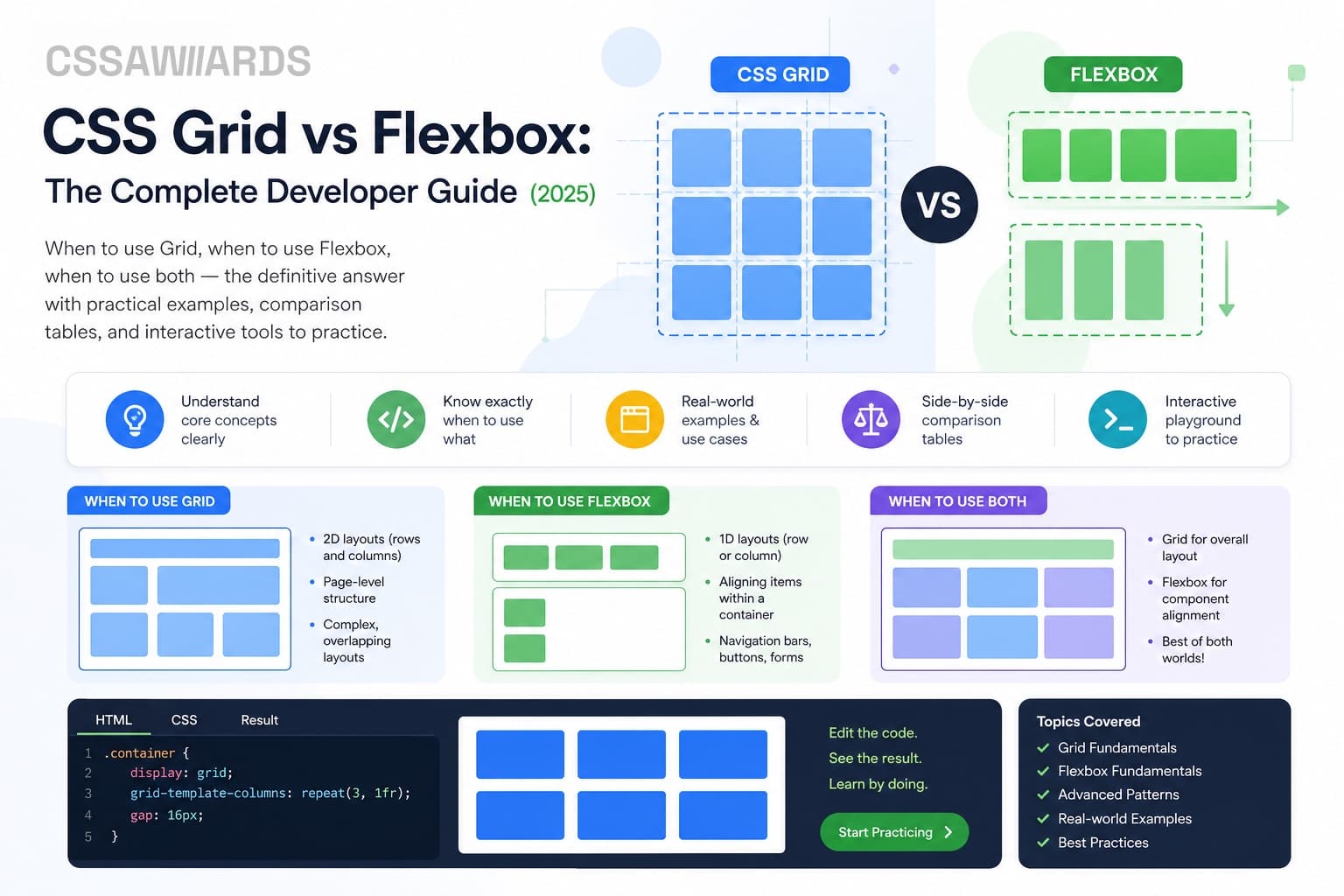
If you want the short answer before diving into the details: use Flexbox for one-dimensional component layouts and CSS Grid for two-dimensional page layouts. That rule of thumb covers the majority of cases. The comparison table below expands on the key differences.
| Property | CSS Flexbox | CSS Grid |
|---|---|---|
| Dimensions | One-dimensional (row or column) | Two-dimensional (rows and columns) |
| Layout approach | Content-driven (items define structure) | Structure-driven (you define the grid first) |
| Primary use case | Component-level layout (nav, cards, forms) | Page-level layout (header, sidebar, main, footer) |
| Item placement | Implicit (items flow in order) | Explicit (items placed by line/area name) or implicit auto-flow |
| Alignment model | justify-content, align-items, align-self | All Flexbox properties + justify-items, place-items, place-content |
| Overlap / stacking | Not native (requires absolute positioning) | Native — items can occupy the same grid cells |
| Learning curve | Lower — fewer concepts to internalise initially | Higher — line numbers, fr units, template areas |
| Browser support (2025) | ~99% global | ~98% global (subgrid: ~95%) |
| Best for beginners? | Yes — learn this first | After Flexbox |
What is CSS Flexbox?
CSS Flexbox (Flexible Box Layout) is a one-dimensional layout model for arranging items in a row or a column. It was designed to solve the problem of distributing space among items in a container and aligning them, even when their sizes are unknown or dynamic — hence the name “flexible.”
A Flexbox layout consists of a flex container (the element with display: flex) and flex items (the direct children of that container). Items are placed along the main axis (defaulting to horizontal/row direction) and aligned along the cross axis (perpendicular to the main axis). You control the layout by setting properties on the container and optionally on individual items.
The most important container properties are: flex-direction (row, column, row-reverse, column-reverse), flex-wrap (whether items wrap to the next line), justify-content (alignment along the main axis), align-items (alignment along the cross axis), and gap (space between items). The most important item properties are the flex shorthand, which combines flex-grow (how much a item grows to fill available space), flex-shrink (how much it shrinks when space is tight), and flex-basis (its initial size before growing or shrinking).
Flexbox is exceptionally well-suited for: navigation bars, button groups, toolbars, centering a single element, aligning items in a card footer, wrapping tag badges, form control rows, and any layout where items should flow in one direction and size themselves intelligently based on their content.
/* A typical Flexbox navigation bar */
.nav {
  display: flex;
  flex-direction: row;
  align-items: center;
  justify-content: space-between;
  gap: 16px;
  padding: 0 24px;
  height: 60px;
}

/* Items grow to fill available space */
.nav__logo {
  flex: 0 0 auto; /* don't grow or shrink */
}

.nav__links {
  display: flex;
  gap: 24px;
  list-style: none;
}

.nav__cta {
  flex: 0 0 auto;
  margin-left: auto; /* pushes to far right */
}
The flex shorthand is worth understanding deeply because it is one of the most common sources of confusion. flex: 1 means flex: 1 1 0 — the item can grow, can shrink, and starts at zero width (growing to fill available space equally with other flex: 1 siblings). flex: 0 0 auto means the item neither grows nor shrinks, keeping its natural size. flex: 1 0 auto means the item grows if there is space but never shrinks below its natural size.
Practice tip: The best way to internalise the Flexbox model is hands-on experimentation. The Flexbox Playground on CSSAWWWARDS lets you toggle every container and item property and see the result instantly.
What is CSS Grid?
CSS Grid Layout is a two-dimensional layout system that lets you define both rows and columns simultaneously. Unlike Flexbox, which works along a single axis, Grid creates a coordinate system where you can place items at specific intersections of rows and columns. It is the first CSS layout system that was explicitly designed with complex, two-dimensional page layouts in mind.
A Grid layout consists of a grid container (the element with display: grid) and grid items (its direct children). The container’s tracks (rows and columns) are defined using grid-template-columns and grid-template-rows. Items can be placed explicitly using grid-column and grid-row (which reference line numbers), or using named areas defined with grid-template-areas. If you do not specify placement, items flow into the grid automatically in source order.
The fr unit is unique to CSS Grid and is one of its most powerful features. It represents a fraction of the available free space in the grid container. grid-template-columns: 1fr 1fr 1fr creates three equal-width columns that together fill the container — regardless of the container’s actual width. Combined with minmax() and repeat(auto-fill, ...), the fr unit enables genuinely responsive layouts without a single media query.
CSS Grid is exceptionally well-suited for: full page layouts, image galleries, pricing tables, dashboard grid layouts, magazine-style editorial layouts, any layout requiring both row and column control simultaneously, and layouts where you need elements to overlap or span multiple tracks.
/* A classic Holy Grail page layout with CSS Grid */
.page-layout {
  display: grid;
  grid-template-columns: 240px 1fr;
  grid-template-rows: 60px 1fr auto;
  grid-template-areas:
    "header  header"
    "sidebar main"
    "footer  footer";
  min-height: 100vh;
  gap: 0;
}

.page-header  { grid-area: header;  }
.page-sidebar { grid-area: sidebar; }
.page-main    { grid-area: main;    }
.page-footer  { grid-area: footer;  }

/* Responsive image gallery — no media queries needed */
.gallery {
  display: grid;
  grid-template-columns: repeat(auto-fill, minmax(200px, 1fr));
  gap: 16px;
}
The grid-template-areas syntax deserves special attention. By assigning string names to areas of the grid and then placing elements into those named areas, you can describe the entire page structure visually in your CSS — making it significantly more readable and maintainable than coordinate-based placement for page-level layouts. You can also redefine the areas at different breakpoints using media queries, completely changing the layout structure with a minimal amount of CSS.
Practice tip: The CSS Grid Generator on CSSAWWWARDS provides a visual canvas for building grid layouts and understanding how rows, columns, and areas interact before writing any code.
Key Differences Explained
1D vs 2D: The Fundamental Difference
The most important difference between Flexbox and Grid is the number of dimensions they operate in. Flexbox is a one-dimensional layout system — you work with items along either a row axis or a column axis, never both at the same time. When flex items wrap onto multiple lines, each line is an independent flex container. You cannot say “item A in the second row should align with item B in the first row” in Flexbox alone, because each row does not know about the others.
CSS Grid is two-dimensional — it controls both rows and columns simultaneously. This means you can align items in both directions, span items across multiple rows or columns, and create genuine two-dimensional alignment that flex wrapping cannot replicate. If you have ever tried to make a wrapping Flexbox card grid where all cards in the same row are the same height without using a fixed height, you have encountered the 1D limitation that Grid solves effortlessly.
Content-Driven vs Layout-Driven
Flexbox is content-driven: the items determine the structure. You place items into the container and Flexbox arranges them based on their content size, their flex values, and the available space. The structure emerges from the content. This is ideal for components where items vary in size and you want the container to accommodate them intelligently.
CSS Grid is layout-driven: you define the structure first, then place content into it. You declare the columns, the rows, and the gaps — and the items fit into the cells you have defined. This is ideal for page layouts where the structure should be consistent and predictable regardless of how content varies between sections.
A useful mental model: with Flexbox, you ask “how should these items distribute themselves?” With Grid, you ask “what is the structure, and where should each item go within it?”
Explicit vs Implicit Placement
In CSS Grid, you can place items with complete precision. By specifying grid-column: 1 / 3, you tell an item to start at column line 1 and end at column line 3, spanning two columns. By specifying grid-area: header, you assign it to a named template area. This explicit placement is what makes complex multi-zone page layouts possible with clean, readable CSS.
Flexbox does not have named areas or line-number placement. Items always flow in source order (unless you use order, which changes visual but not DOM order). For page-level structures where you want header at the top, sidebar on the left, and main content in the centre regardless of source order, Grid’s explicit placement is essential.
Alignment Model
Both Flexbox and Grid share the CSS Box Alignment specification and therefore use the same justify-content, align-items, align-content, and align-self properties. However, Grid adds justify-items and justify-self (there is no equivalent in Flexbox for controlling items along the main axis individually), plus the shorthand place-items (which sets both align-items and justify-items) and place-content. This makes centering extremely concise in Grid: display: grid; place-items: center is two lines to perfectly centre a child element.
When to Use Flexbox
Flexbox is the right choice when you are working at the component level — arranging items within a contained UI element rather than defining the structure of the page itself. Here are the specific scenarios where Flexbox is the natural fit.
Navigation bars and headers. A site header with a logo on the left, navigation links in the middle, and a CTA button on the right is a classic Flexbox pattern. The container uses justify-content: space-between and align-items: center, and the items size themselves based on their content. Media query adjustments switch flex-direction to column for mobile.
Button groups and toolbars. A row of buttons, icon buttons, or a rich text editor’s toolbar is perfectly handled by Flexbox. The buttons flow in a row, wrap gracefully when the container is narrow, and space themselves evenly. gap provides consistent spacing without margin arithmetic.
Centering a single element. While Grid with place-items: center is arguably cleaner, display: flex; align-items: center; justify-content: center on a container is the most universally understood way to centre its content and works reliably across all browsers.
Card footers and component internals.Within a card component, the footer section (containing a price on the left and a “Buy now” button on the right) is a Flexbox layout. So is the card header (avatar + name + timestamp). So is a form row (label + input). Any time you have a handful of items that need to align along a single axis, Flexbox is your tool.
Wrapping badges and tags. A list of technology tags on a blog post — unknown in number and variable in width — should flow in a wrapping Flexbox row. Items wrap naturally when the row fills, maintaining consistent spacing without requiring JavaScript to measure anything.
When to Use CSS Grid
CSS Grid is the right choice when you are working at the page level or when you need two-dimensional control over a layout — when the position of items in both rows and columns matters simultaneously.
Full page layouts. The header-sidebar-main-footer structure of a typical web application is the canonical Grid use case. Define the columns (240px 1fr), the rows (60px 1fr auto), and the named areas, then assign each section to its area. The layout is expressed declaratively and can be modified at any breakpoint by redefining the template areas — no restructuring of the HTML required.
Image galleries and card grids. A responsive image gallery where each cell should be the same size regardless of image content is a Grid layout. The repeat(auto-fill, minmax(200px, 1fr)) pattern creates as many columns as will fit at the minimum width, expanding to fill available space — a truly responsive grid with zero media queries.
Pricing tables. A pricing table with three plans, each listing features in aligned rows, requires both column and row alignment. With Grid, you can define the columns once and ensure features in the same row align perfectly across all columns — even if the feature text has different lengths. This is not possible with Flexbox without resorting to fixed heights.
Dashboard layouts. Admin dashboards with multiple panels, charts, and metric boxes of varying sizes are natural Grid layouts. Each panel can be assigned to specific grid areas, and panels can span multiple rows or columns. The visual structure can be completely defined in CSS, making it easy to rearrange panels at different breakpoints.
Magazine and editorial layouts. Overlapping elements, items spanning multiple rows, and asymmetric placement — the hallmarks of editorial design — are possible only with CSS Grid. Feature images that span three columns, pull quotes that overlap two rows, and staggered article cards are all native Grid capabilities.
Any layout requiring overlapping elements. Because Grid items can be placed at the same cell coordinates, elements can overlap natively without requiring absolute positioning. This is used for image-with-overlay effects, stacked card animations, and decorative element placement that should remain part of the document flow.
Using Grid and Flexbox Together
The false dichotomy implied by the “Grid vs Flexbox” framing is that you must choose one or the other. In practice, the best-architected CSS uses both — Grid for the macro layout and Flexbox for the micro layout within each section. They are designed to complement each other.
Consider a blog post page. The page itself uses CSS Grid to define the layout: a header spanning the full width, a main content column (780px centred), and an optional sidebar. The header uses Flexbox internally to arrange the logo, navigation, and CTA button. The article itself uses Flexbox within the author meta section (avatar, name, date in a row) and within the related articles row at the bottom. The sidebar might use Flexbox for its category tag cloud.
This pattern — Grid at the outside, Flexbox on the inside — is not a workaround or a compromise. It reflects exactly what each system is designed for. Grid defines the coordinate system of the page; Flexbox handles the flowing, adaptive arrangement of items within each zone. Using both is standard professional practice.
/* Macro layout: CSS Grid */
.page {
  display: grid;
  grid-template-columns: 1fr min(780px, 100%) 1fr;
  grid-template-rows: auto 1fr auto;
}

.page > * {
  grid-column: 2; /* all children in centre column */
}

/* Micro layout: Flexbox inside a grid area */
.article-meta {
  display: flex;
  align-items: center;
  gap: 12px;
  padding: 16px 0;
  border-top: 1px solid var(--color-border);
}

.article-meta__avatar {
  flex: 0 0 40px;
  width: 40px;
  height: 40px;
  border-radius: 50%;
}

.article-meta__info {
  flex: 1;
  display: flex;
  flex-direction: column;
  gap: 2px;
}

.article-meta__date {
  margin-left: auto; /* pushes date to far right */
  flex: 0 0 auto;
}
Common Layout Patterns: Grid or Flexbox?
When faced with a specific layout task, the following reference answers the Grid-or-Flexbox question for the most common patterns encountered in real projects.
| Layout Pattern | Use | Key CSS |
|---|---|---|
| Navigation bar | Flexbox | justify-content: space-between; align-items: center |
| Holy Grail layout | Grid | grid-template-areas with header/sidebar/main/footer |
| Responsive card grid | Grid | repeat(auto-fill, minmax(240px, 1fr)) |
| Centering a modal | Grid | display: grid; place-items: center |
| Form with label + input | Flexbox or Grid | Flexbox row per field, or Grid for aligned multi-column forms |
| Magazine layout | Grid | Named areas + spanning rows/columns |
| Responsive image gallery | Grid | auto-fill / auto-fit with minmax() |
| Button group / toolbar | Flexbox | flex-wrap: wrap; gap: 8px |
| Wrapping tag badges | Flexbox | flex-wrap: wrap; gap: 6px |
| Overlapping elements | Grid | Place multiple items in same grid area |
| Sidebar + main content | Grid | grid-template-columns: 240px 1fr |
| Card footer alignment | Flexbox | margin-top: auto on footer pushes it to bottom |
One pattern worth highlighting is the “card footer at the bottom” problem. If you have a grid of cards with varying content heights, you want the footer of each card (with the price and button) to always sit at the bottom of the card, regardless of how much text is in the card body. The cleanest solution: make each card a display: flex; flex-direction: column Flexbox container and apply margin-top: auto to the card footer. This pushes the footer to the bottom of any available space — a pattern that is neither Grid nor Flexbox alone, but the combination of Grid for the outer gallery and Flexbox for the card internals.
Performance Considerations
Performance is occasionally cited as a reason to prefer Flexbox over Grid — the implication being that Grid’s more complex layout algorithm is slower. This was a reasonable concern in 2017 when Grid was new and browser implementations were not yet fully optimised, but it is not a meaningful practical concern in 2025.
Both Flexbox and CSS Grid layout calculations are handled in the browser’s rendering engine and are hardware-accelerated. For the vast majority of real-world layouts, the difference in layout calculation time between the two systems is measured in microseconds — far below the perceptible threshold for users. Modern browsers (Chrome, Firefox, Safari, Edge) all have mature, optimised implementations of both layout systems.
The performance concern you should focus on is layout thrashing — the pattern where JavaScript reads a layout property (like offsetWidth), then writes a style, then reads again, forcing the browser to recalculate layout multiple times per frame. This is harmful regardless of whether you are using Grid or Flexbox, and it is the actual cause of most CSS-related performance problems in real applications. Batching DOM reads and writes, or using CSS transitions instead of JavaScript for animations, addresses the real performance problem.
The practical recommendation: choose the layout system that is most appropriate for the task, not the one you assume is faster.Choosing Flexbox where Grid is the correct tool will not make your page faster, but it will produce more complex, less maintainable CSS as you work around Flexbox’s one-dimensional limitations.
Browser Support in 2025
Browser support for both Flexbox and CSS Grid is effectively universal in 2025. Flexbox has been fully supported across all major browsers since 2015 and sits at approximately 99% global usage coverage. You do not need vendor prefixes, polyfills, or fallbacks for any Flexbox feature in any browser you are likely to target.
CSS Grid reached stable cross-browser support in 2017 and is now supported in approximately 98% of browsers globally. The gap property (formerly grid-gap) in Flexbox contexts reached full support in all major browsers by 2021 — you should use gap, not the older margin hacks, in all new projects.
CSS Subgrid— which allows a nested grid to inherit its parent grid’s tracks, enabling true cross-component alignment — was the last major Grid feature to achieve broad support. Firefox supported it first, Chrome/Edge added support in 2023, and Safari added it in 2022. Subgrid now has approximately 95% global support, making it safe to use in most production projects with an appropriate fallback for the remaining 5%.
The gap property in Flexbox is worth confirming is distinct from the older Flexbox grid-gap. The unified gap property works in both Grid and Flexbox contexts and is the current standard. It works in all browsers released since mid-2021.
In short: if you are dropping support for browsers older than approximately three years, you can use every feature of both Flexbox and CSS Grid without any caveats. The old adage “CSS Grid has patchy browser support” is no longer true and has not been for years.
Hands-On Practice: Free Tools
Reading about CSS Grid and Flexbox builds understanding, but hands-on experimentation builds intuition. The two tools below are the fastest way to move from knowing the theory to developing a feel for how the systems actually behave.
Flexbox Playground
The CSSAWWWARDS Flexbox Playground renders a live flex container with a configurable number of items. Every container property and item property is exposed through controls that update the layout in real time. The generated CSS updates as you configure, so you can see exactly what each property does and immediately copy the code for your project.
The most valuable exercises on the Flexbox Playground: experiment with flex-direction: column and notice how justify-content and align-items swap axes; toggle flex-wrap and observe how the cross-axis alignment changes; set different flex values on individual items and see how space is distributed. These are the scenarios that most frequently trip up developers who have only read about Flexbox rather than experimented with it.
CSS Grid Generator
The CSSAWWWARDS CSS Grid Generator provides a visual canvas for building grid layouts. You define rows and columns by entering track sizes (in any unit: px, fr, %, minmax()), then draw named areas on the canvas by clicking and dragging across cells. The generator exports both the container CSS (with grid-template-columns, grid-template-rows, and grid-template-areas) and the individual area CSS (grid-area: name for each section).
The best way to use the Grid Generator is to start with a layout you need to build — your next page design, a dashboard mockup, or a card gallery — and build it in the generator before writing any component code. Seeing the grid structure visually, and being able to adjust it interactively before committing to it in your codebase, dramatically reduces the number of iterations needed during development.
Frequently Asked Questions
- Is CSS Grid replacing Flexbox?
- No. CSS Grid and Flexbox are complementary tools, not competing ones. Grid excels at two-dimensional layouts; Flexbox excels at one-dimensional component layouts. The modern best practice is to use both: Grid for page-level structure and Flexbox for the items within each section. Neither is going away — both are core, long-term CSS specifications.
- Can I center a div with CSS Grid?
- Yes, and it is one of the cleanest ways to do it. Set the parent to
display: gridand addplace-items: center. That is two lines of CSS to perfectly centre any child element — horizontally and vertically — regardless of its size. This also works for centring a modal overlay over the full viewport. - Which is better for responsive design, Grid or Flexbox?
- Both support responsive design, but in different ways. CSS Grid with
auto-fillorauto-fitandminmax()creates responsive grids that reflow automatically without media queries — ideal for card grids and image galleries. Flexbox withflex-wraphandles responsive row-and-column flows naturally. For complex responsive page layouts, Grid is generally more expressive; for responsive component-level flows, Flexbox is often simpler. - What is the fr unit in CSS Grid?
- The
fr(fractional) unit represents a fraction of the available free space in the grid container. For example,grid-template-columns: 1fr 2frcreates two columns where the second is twice as wide as the first, and both expand to fill the available container width. Unlike percentages,frunits account for gap spacing automatically, making them far more practical for responsive layouts. - Does Flexbox support two-dimensional layouts?
- Not in the way CSS Grid does. Flexbox is fundamentally a one-dimensional system — it controls items along either a row or a column axis, but not both simultaneously. When flex items wrap onto multiple lines, each line is treated as an independent flex container. This means you cannot align items across rows in a wrapping Flexbox layout the way you can in CSS Grid.
- Which should I learn first as a beginner, Grid or Flexbox?
- Learn Flexbox first. It has a simpler mental model (one axis at a time), it is used more frequently for component-level layout, and its vocabulary —
flex-direction,justify-content,align-items— is more intuitive than Grid’s row and column line numbering. Once you are comfortable with Flexbox, Grid’s concepts build naturally on that foundation. Use the Flexbox Playground to start experimenting today.
Conclusion
CSS Grid and Flexbox are both essential tools for any frontend developer in 2025. They are not rivals — they are complementary systems designed for different scales and dimensions of layout problem. Flexbox owns one-dimensional component layout: navigation bars, button groups, form rows, card internals, and any situation where items should flow intelligently in a single direction. CSS Grid owns two-dimensional page layout: full-page structures, galleries, dashboards, and any situation where you need to control both rows and columns simultaneously.
The practical answer to “Grid vs Flexbox?” is almost always: both. Use Grid for the page structure and Flexbox for the components within it. This combination covers every layout requirement a modern web application has, and the code that results is more readable and maintainable than attempting to do everything with one system.
If you are new to either system, start with the interactive tools. The Flexbox Playground will teach you the flex model faster than any article (including this one), and the CSS Grid Generator will give you a visual intuition for track sizing and area placement before you write a single line of code.
For more CSS tools covering generators, animation utilities, colour checkers, and typography tools, explore the full CSSAWWWARDS tools directory — all free, all no-signup, all outputting production-ready CSS.
Share this article