One in twelve men and one in two hundred women have some form of color vision deficiency. This guide covers how to simulate, audit, fix, and verify color accessibility across your entire UI — with practical CSS patterns, free tools, and WCAG compliance guidance.
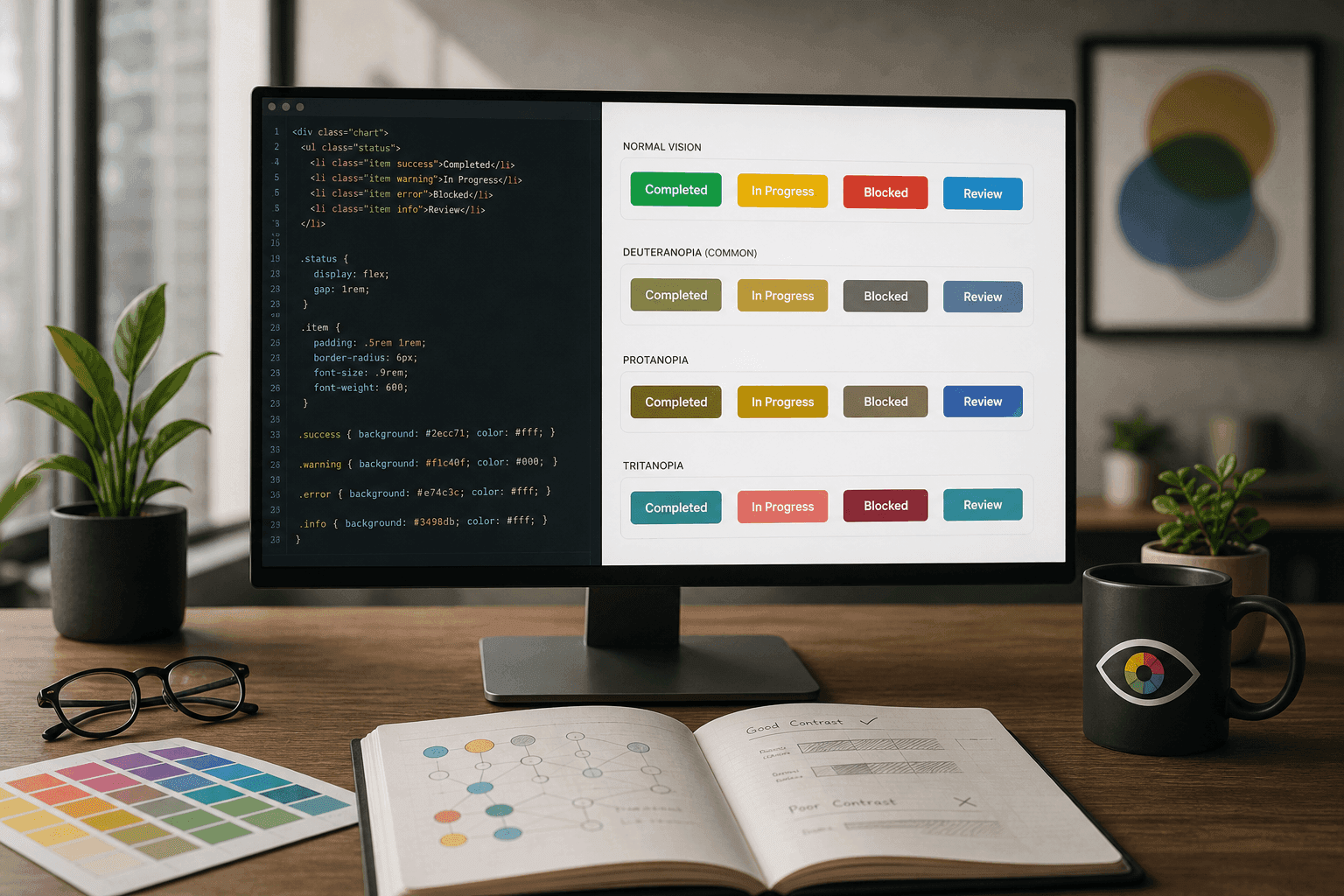
Quick Answer
Approximately 300 million people worldwide have color vision deficiency. That includes about 8% of all males — meaning roughly 1 in 12 men visiting your site cannot see your color choices the way you intend. In a typical web audience of 100,000 monthly visitors, 4,000–8,000 will have some degree of CVD. Color accessibility is not an edge case; it is a mainstream audience concern.
300M
people with CVD worldwide
8%
of males affected
0.5%
of females affected
~1:12
men, red-green CVD
Color blindness is a misnomer that implies a world of pure grey — in reality, most people with color vision deficiency see colors, but certain hues become harder or impossible to distinguish from each other. The most common form (red-green color blindness, in its various severities) makes red and green look like different shades of the same brownish yellow. A green “success” banner and a red “error” banner that differ only in hue are effectively invisible to a significant portion of your users.
The legal dimension is also relevant: WCAG 2.1 Success Criterion 1.4.1 explicitly states that “color is not used as the only visual means of conveying information, indicating an action, prompting a response, or distinguishing a visual element.” Violating this criterion at level AA means your site may not meet ADA, EN 301 549, or EAA accessibility requirements.
Quick Answer
There are 4 main types plus 2 partial variants. Red-green CVD (protanopia and deuteranopia) is most common, affecting ~8% of males. Blue-yellow CVD (tritanopia) is rare at ~0.01%. Achromatopsia (complete absence of color vision, seeing only greyscale) is very rare at ~0.003%. Protanomaly and deuteranomaly are milder versions of red-green CVD with reduced, rather than absent, color sensitivity.
Design for red-green CVD first. Protanopia, protanomaly, deuteranopia, and deuteranomaly collectively affect ~8% of males. If your design passes all four of these filters without ambiguity, tritanopia and achromatopsia are usually also handled — the color distinctions needed for those are less likely to conflict with your existing palette adjustments.
Quick Answer
Use a color blindness simulator to view your UI palette through each vision type. The CSSAWWWARDS Color Blindness Simulator lets you add up to 12 colors and compare them across 6 vision types simultaneously in a grid. Look for any two colors that become near-identical in any column — those are your accessibility risks.
Simulation works by applying mathematical matrix transformations to RGB color values that approximate the neural response of each cone type. The matrices published by Viénot, Brettel, and Mollon (1999) remain the most widely-cited and are used by professional design tools, browser devtools color blindness modes, and the CSSAWWWARDS simulator.
There are several ways to simulate color blindness without specialized hardware:
Quick Answer
WCAG 2.1 AA requires at least 4.5:1 contrast for normal text and 3:1 for large text (18pt+ or 14pt+ bold). AAA requires 7:1 for normal text and 4.5:1 for large text. Contrast is measured using the W3C relative luminance formula. In CSS, using OKLCH with a lightness value below ~0.45 on a white background consistently achieves 4.5:1 or better.
/* WCAG AA: 4.5:1 for body text, 3:1 for large text (18pt+ / 14pt+ bold) *//* WCAG AAA: 7:1 for body text, 4.5:1 for large text */ /* ❌ Fails AA — contrast ratio ~2.1:1 */.bad-combo { background: #ffffff; color: #aaaaaa; /* light grey on white */} /* ✅ Passes AAA — contrast ratio ~7.5:1 */.good-combo { background: #ffffff; color: #202020;} /* ✅ OKLCH pairs with equal lightness + high contrast on white */:root { --color-text: oklch(0.2 0 0); /* ~7.5:1 on white */ --color-muted: oklch(0.45 0 0); /* ~4.6:1 on white */ --color-subtle: oklch(0.6 0 0); /* ~2.8:1 — large text only */}The contrast ratio formula compares the relative luminance of two colors: (L1 + 0.05) / (L2 + 0.05) where L1 is the lighter color and L2 is the darker. Relative luminance is calculated from linearized sRGB values using specific coefficients that model the human eye's sensitivity to each channel (roughly 21% red, 72% green, 7% blue — which is why pure green is much lighter than pure blue at the same sRGB values).
WCAG 3.0 introduces APCA (Advanced Perceptual Contrast Algorithm), which is more nuanced: it considers font weight and size more granularly, uses polarity-aware scoring (dark-on-light vs. light-on-dark differ), and provides better predictions of real-world readability. However, WCAG 2.1 contrast ratios remain the current legal requirement in most jurisdictions. Design for WCAG 2.1 AA compliance today, and APCA-aware spacing and weight choices will serve you well when WCAG 3.0 lands.
Quick Answer
OKLCH is a perceptually uniform color space — equal numeric changes in lightness (L) correspond to equal perceived changes in brightness. Unlike HSL (where a red and a blue at the same “lightness” look very different in brightness to the eye), OKLCH's L value is calibrated to human perception. This makes it the ideal space for building accessible palettes where colors at the same L value truly have equal contrast on any background.
/* OKLCH lets you tune lightness independently of hue *//* Colors at the same L value are equally bright to the eye */ :root { /* Primary color in multiple lightness steps — same hue (264), same chroma (0.2) */ --blue-900: oklch(0.2 0.2 264); /* very dark — use for text */ --blue-700: oklch(0.35 0.2 264); /* dark */ --blue-500: oklch(0.5 0.2 264); /* mid — use carefully on white */ --blue-300: oklch(0.7 0.2 264); /* light */ --blue-100: oklch(0.92 0.05 264); /* near-white tint */ /* Green at same lightness steps — L=0.35 guarantees equal brightness */ --green-700: oklch(0.35 0.18 145); --red-700: oklch(0.35 0.22 25); --amber-700: oklch(0.35 0.16 75); /* These four are the same perceived brightness → distinguishable by hue alone */}The OKLCH color model has three components: L (lightness, 0–1), C (chroma/saturation, 0–0.37+), and H (hue, 0–360°). The critical accessibility insight is that when you hold L constant across colors of different hues, those colors will have genuinely equal perceived brightness. This means you can create a set of primary, secondary, and semantic colors that are all equally legible on a white or dark background, just by ensuring they share the same L value.
OKLCH is natively supported in all major browsers since 2023 (Chrome 111, Firefox 113, Safari 16.4). You can use it directly in CSS without a preprocessor or build step. Use the Color Format Converterto convert your existing HEX palette to OKLCH and inspect the L values — large differences in L between “equal” colors in your palette are a sign that your palette has hidden contrast inconsistencies.
CSS color-mix() in the oklch space produces perceptually even tints. color-mix(in oklch, var(--color-brand) 20%, white) creates a tint that is genuinely lighter — not the same as HSL mixing which can shift hue and saturation in unexpected ways. This matters for accessible background tints in notification banners, badge backgrounds, and hover states.
Quick Answer
WCAG 1.4.1 (Level AA) requires that color is never the only visual means of conveying information. Any UI element that uses color to communicate a state, action, or distinction must also communicate that information through another channel — text, icon, pattern, shape, or position.
/* ❌ Color alone — invisible to many CVD users */.status-error { color: #dc2626; }.status-success { color: #16a34a; } /* ✅ Color + icon + label — always distinguishable */.status-error { color: #dc2626; display: flex; align-items: center; gap: 6px;}.status-error::before { content: "✕"; font-weight: 700; flex-shrink: 0;} .status-success { color: #16a34a; display: flex; align-items: center; gap: 6px;}.status-success::before { content: "✓"; font-weight: 700; flex-shrink: 0;}The most common violations of this rule in production UIs are: status badges that use only color (green badge = active, red badge = inactive — without any text label), form validation that turns a border red on error without adding error text, required-field asterisks in red that are only distinguishable by color, and chart legend items where the only distinguishing feature is color.
The fix does not require removing color — it requires adding a secondary signal. A status badge can remain green and red while also including “Active” and “Inactive” text labels. An error field can remain red while also adding an icon and an error message. The color remains as a fast visual scan aid for users who can see it, while the additional signal serves users who cannot.
Quick Answer
For charts and data visualization, choose colors that differ in hue and lightness — not just hue. Use OKLCH with varied L values to ensure colors are distinguishable even in greyscale. Add direct labels, patterns, or dashed/solid line styles as secondary differentiators for chart series.
/* Chart colors: use OKLCH to maintain equal lightness *//* Distinguishable even in greyscale / for red-green CVD */ :root { --chart-blue: oklch(0.45 0.2 264); /* blue */ --chart-orange: oklch(0.45 0.2 55); /* orange */ --chart-purple: oklch(0.45 0.2 300); /* purple */ --chart-teal: oklch(0.45 0.2 185); /* teal */} /* ❌ Bad chart palette — red and green at similar lightness */:root.bad { --chart-red: #ef4444; /* oklch: ~0.55 0.22 25 */ --chart-green: #22c55e; /* oklch: ~0.74 0.2 145 — different lightness! */ /* Even after greyscale, they differ in brightness but red-green CVD users can't tell them apart by hue alone */}Charts are the highest-risk area for color blindness accessibility because they frequently use color as the primary identifier for data series — a line chart with a red series and a green series, a pie chart with adjacent red and green slices, or a heatmap where warm and cool colors encode meaning. None of these work for red-green CVD users without additional cues.
Proven solutions: use direct data labels instead of legends, vary line stroke patterns (solid, dashed, dotted) in addition to color, use fill patterns (hatching) for bar/pie charts in addition to fill color, and choose palettes that are perceptually distinct in both hue and lightness. The IBM, Wong, and Okabe-Ito palettes are designed specifically for color-blind-safe data visualization and are worth studying as references.
Quick Answer
Dark mode introduces an often-overlooked accessibility failure: colors that passed WCAG AA contrast in light mode can fail dramatically in dark mode if you simply invert the palette. Status colors in particular need to be significantly lighter in dark mode to maintain the same contrast ratio against a dark background as they had against white.
/* Dark mode accessible palette */@media (prefers-color-scheme: dark) { :root { /* Avoid pure white on black — too harsh; use near-white */ --color-text: oklch(0.92 0 0); /* near-white text */ --color-muted: oklch(0.65 0 0); /* secondary text — 4.5:1 on dark bg */ --color-bg: oklch(0.12 0 0); /* very dark background */ /* Status colors must be lighter in dark mode to maintain contrast */ --color-error: oklch(0.72 0.2 25); /* lighter red */ --color-success: oklch(0.72 0.18 145);/* lighter green */ --color-warning: oklch(0.8 0.16 75); /* lighter amber */ }}The most common mistake when implementing dark mode is to use the same semantic colors in both modes. A red that is #dc2626 has a contrast ratio of ~5.9:1 against white (passes AA) but only ~2.3:1 against a near-black background like #1a1a1a (fails AA). The dark mode equivalent needs to be significantly lighter — something like oklch(0.72 0.2 25) — to maintain the same contrast level.
OKLCH's perceptual lightness model makes this straightforward: to achieve the same contrast against a dark background that a color achieves against white, target the complementary lightness value. If your light mode text is at L=0.2 on white, your dark mode background text should be at roughly L=0.88–0.92 on dark. The exact values depend on the background color, so always verify with a contrast checker rather than relying on the L value alone.
A complete color accessibility audit uses three complementary tools: a simulator for visual feedback on how specific hues transform under each CVD type, a contrast checker for WCAG pass/fail verification, and a color format converter for inspecting and adjusting your palette's underlying color model.
Checklist for color accessibility audit:(1) Run your full UI palette through the Color Blindness Simulator and check for any pairs that look identical in any column. (2) Check every text/background pair in the Color Contrast Checker against WCAG AA. (3) Find every place in your UI where color is the only signal — add icons, labels, or patterns. (4) Convert your semantic colors to OKLCH and check that L values across status colors are consistent. (5) Test dark mode contrast ratios separately — don't assume light-mode-passing colors pass in dark mode.
How many people have color blindness?
Approximately 300 million people worldwide have color vision deficiency (CVD). This includes about 8% of males and 0.5% of females with inherited red-green CVD. In a typical web audience of 100,000 monthly visitors, around 4,000–8,000 will have some degree of CVD.
What is the most common type of color blindness?
Deuteranomaly (weakened green sensitivity) is the most common form, affecting about 5% of males. Red-green CVD collectively (all four variants) affects about 8% of males. Tritanopia and achromatopsia are rare at 0.01% and 0.003% respectively.
What is the WCAG color contrast requirement?
WCAG 2.1 AA requires 4.5:1 contrast for normal text and 3:1 for large text (18pt+ or 14pt+ bold). AAA requires 7:1 for normal text and 4.5:1 for large text. WCAG AA is the current legal standard in most accessibility legislation.
What is OKLCH and why is it better for accessible color?
OKLCH is a perceptually uniform color space where the L (lightness) value tracks perceived brightness accurately. Colors at the same L value are equally bright to the human eye, making it easy to build accessible palettes with consistent contrast. Natively supported in all major browsers since 2023.
Should I avoid red and green in my UI?
Not necessarily. Red and green can coexist as long as they are never the only means of communicating different information. Add icons, labels, or patterns alongside any color-only signal. The problem is using color alone — not using red or green.
What is a good accessible color palette for status indicators?
Use colors with sufficient contrast that also differ in lightness (not just hue), and always add icons and text labels. A proven set: blue for info, amber for warning, red for error, green for success — each with its own icon (ℹ, ⚠, ✕, ✓). Test all four through the Color Blindness Simulator.
Is there a free color blindness simulator for web design?
Yes — the CSSAWWWARDS Color Blindness Simulator lets you add up to 12 colors and view them across 6 vision types simultaneously. The Color Contrast Checker handles WCAG ratio verification. Both are free, no signup required.
