Media queries react to the viewport. Container queries react to the parent. That single shift makes it possible to build truly reusable components — the same card, sidebar widget, or product tile responds to wherever it is placed, not to how big the browser window happens to be.
Quick Answer
CSS container queries are a layout feature that lets elements respond to the size of their parent container rather than the viewport. Using container-type on a parent and @containerrules on children, you write breakpoints based on the containing element's width — making components truly reusable regardless of where they're placed on the page.
For the first twenty years of responsive web design, the only tool developers had was the media query — a rule that fired based on the width of the browser viewport, a global measurement that has nothing to do with how wide a specific component actually is on screen. This created a fundamental mismatch: a card component in a three-column grid and the same card in a sidebar were both forced to respond to the same global viewport breakpoints, even though one might be 400px wide and the other 200px at the same viewport size.
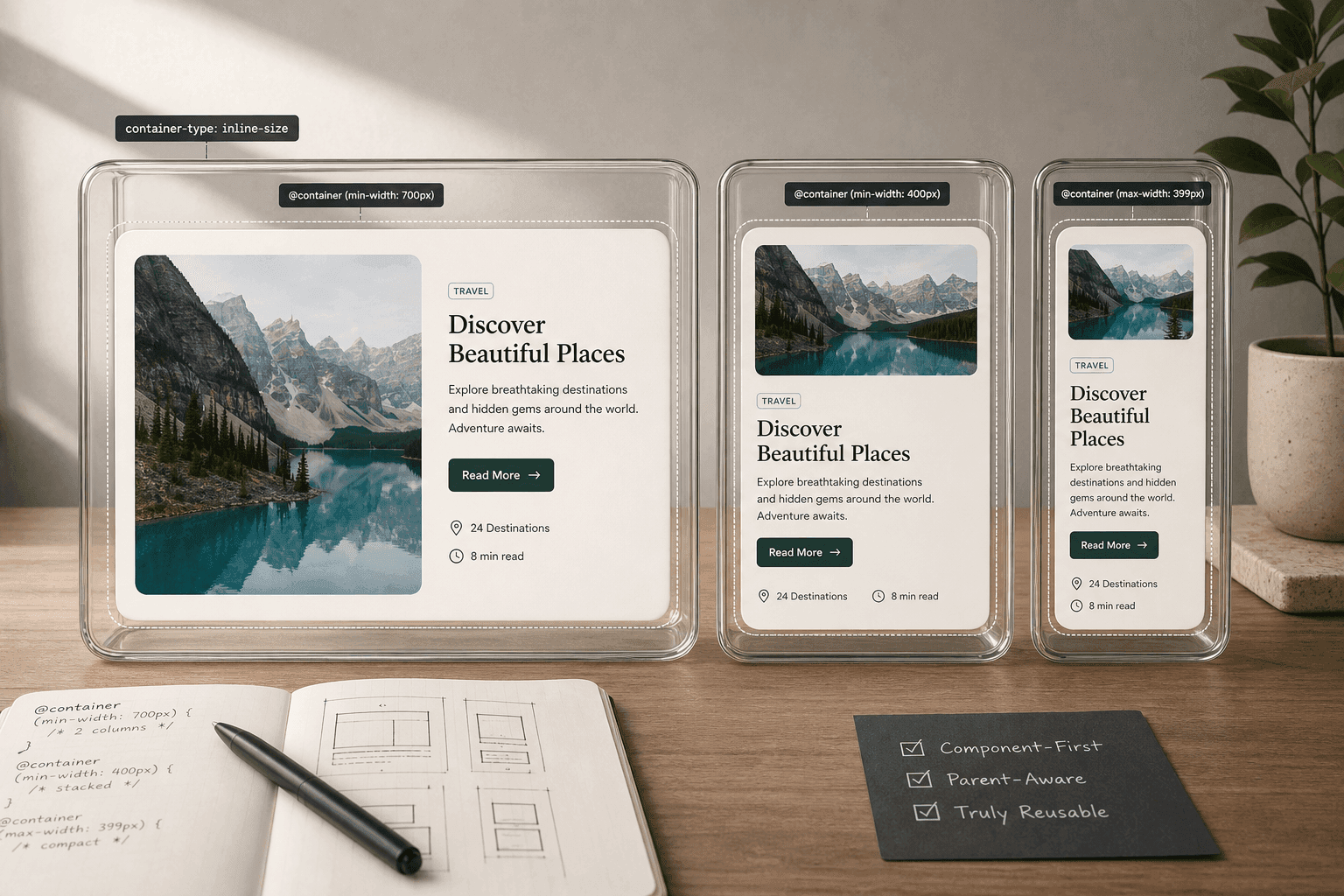
Container queries solve this. Instead of measuring the viewport, they measure the containing element. An element with container-type: inline-size establishes a containment context, and any descendant can write @container rules that fire based on how wide that ancestor currently is. The same card component, placed in both a wide main column and a narrow sidebar, adapts to each independently — both on the same page, at the same viewport size, simultaneously.
Container queries shipped in all major browsers between 2022 and 2023. Chrome 105, Firefox 110, and Safari 16 all support them. Global browser support passed 93% in 2025. They are not an experimental feature — they are production-ready today.
The feature is formally part of CSS Containment Level 3, a specification that also covers style queries (responding to CSS custom property values on a container) and size queries (responding to height as well as width). This guide focuses on size queries using inline-size, the form that covers roughly 95% of real production use cases.
Quick Answer
Use media queries for page-level layout changes that respond to the viewport — switching from one column to three columns, hiding a sidebar on mobile. Use container queries for component-level changes that should respond to the component's context — how a card, widget, or UI element behaves based on how much space its parent gives it. Most production projects need both.
The clearest way to understand the distinction is to think about what you're actually reacting to. If the answer is “the browser window is wide enough to support a multi-column layout,” that is a media query. If the answer is “the container holding this component is wide enough that the component should show its horizontal variant,” that is a container query.
/* ─── Media query ─── responds to the viewport */@media (min-width: 768px) { .card { flex-direction: row; }} /* ─── Container query ─── responds to the parent */.card-wrapper { container-type: inline-size;} @container (min-width: 400px) { .card { flex-direction: row; }} /* Same card in a 300px sidebar → stacked Same card in a 700px main area → horizontal Both on the same page simultaneously ✓ */The two are not in competition — they solve different problems at different levels of the layout hierarchy. A typical page layout sets up its grid structure with media queries, then fills each grid area with components that use container queries to adapt to however wide that particular grid area happens to be. The components become truly layout-agnostic: you can drop the same card into a 280px sidebar or a 900px main area and it handles both without any changes.
Before container queries, building a component that needed to behave differently based on its context required one of several workarounds: JavaScript ResizeObserver callbacks to toggle classes, duplicated CSS with different selectors for each location the component could appear, or just accepting that the component would always use the same variant regardless of context. All three are either fragile, verbose, or simply wrong from a UI standpoint. Container queries replace all of these workarounds with a single, declarative CSS approach that requires no JavaScript.
Quick Answer
Set container-type: inline-size on a parent to make it a containment context. Write @container (min-width: Xpx) { } rules targeting child elements. Optionally add container-name: my-name to the parent and write @container my-name (min-width: Xpx) { } to target a specific ancestor.
/* 1. Make the parent a container */.card-wrapper { container-name: card; container-type: inline-size;} /* 2. Write rules that respond to its width */@container card (max-width: 320px) { .card { flex-direction: column; }} @container card (min-width: 320px) { .card { flex-direction: row; gap: 1.5rem; }}/* Responds to the element's width only (most common) */.wrapper { container-type: inline-size; } /* Responds to both width and height */.widget { container-type: size; } /* Enables style queries only — no size queries */.section { container-type: normal; }inline-size is by far the most common value and handles the vast majority of real responsive component work. It establishes the element as a containment context for the inline axis only — meaning @containerrules can react to its computed width. The word “inline” here refers to the CSS writing-mode concept: in a left-to-right layout, the inline axis is horizontal.
sizeestablishes containment for both axes, enabling queries on both width and height simultaneously. This is useful for components that must fit in a fixed-size region — a card inside a fixed-height dashboard tile, for example — but it carries a slightly higher layout cost because the browser must contain both dimensions, and it requires that the element's height not depend on its content.
normal opts an element into style queries (which allow querying the value of a CSS custom property on a container) without enabling size queries. This is the least common value and primarily useful for theming scenarios.
container is a shorthand that sets both container-name and container-type together: container: card / inline-size is exactly equivalent to setting both properties separately. Either form is correct — the shorthand is slightly more concise, the longhand form is slightly easier to read and scan.
Important: An element cannot query its own container — it can only query an ancestor. This is by design: if an element could query its own size, you could create infinite resize loops where a size change triggered a style change that triggered another size change. The browser prevents this by requiring the queried container to be an ancestor of the element the rules apply to.
Quick Answer
Without a name, @container (min-width: Xpx) targets the nearest ancestor container. With a name — set via container-name: sidebar — the rule @container sidebar (min-width: Xpx) targets only that specific named ancestor, letting you skip intermediate containers and write precise, intent-clear rules.
In a complex layout with multiple nested containers, unnamed @containerrules always target the nearest containment context ancestor. This is the right default for most components — a card queries its immediate wrapper, not some distant ancestor. But when you need a component to respond specifically to a known, named layout region regardless of how deeply it's nested, named containers are the solution.
/* Named containers let you target a specific ancestor */.sidebar { container-name: sidebar; container-type: inline-size;} .main { container-name: main; container-type: inline-size;} /* Only fires when .sidebar is narrow */@container sidebar (max-width: 220px) { .nav-link { font-size: 0.75rem; padding: 4px 6px; }} /* Only fires when .main is wide */@container main (min-width: 700px) { .article-grid { grid-template-columns: repeat(2, 1fr); }}Named containers are especially useful in component library design, where a component may be embedded in contexts you don't control. By naming your layout containers explicitly — container-name: sidebar, container-name: main-content, container-name: modal — consumers of the library can write container query rules that unambiguously target the right layout context, regardless of what other containers may sit between.
Quick Answer
Container queries nest freely. A child element can be its own container, and its children can query it independently of any outer container. Each containment context is fully isolated — an inner container's behavior does not depend on what the outer container is doing.
/* Nested containers work independently */.page { container-name: page; container-type: inline-size;} .sidebar { container-name: sidebar; container-type: inline-size;} /* Widget in sidebar queries sidebar width — not page width */@container sidebar (min-width: 180px) { .widget { padding: 1rem; font-size: 0.875rem; }} @container sidebar (max-width: 180px) { .widget { padding: 0.5rem; font-size: 0.75rem; }}Nested containers are the feature that makes container queries composable at scale. In a real component system, a page layout establishes a set of named regions. Each region can itself be a container, and the components placed within each region respond to that region's size. Those components may themselves contain sub-components, each with their own containment context. The result is a cascade of responsive behavior where every level of the UI adapts to its own context, not to some global, external measurement.
Quick Answer
The most impactful real-world pattern is the responsive card component: base styles define a stacked (column) layout, and a container query at 380px or so switches it to a horizontal (row) layout — making the same card reusable in any context from a narrow sidebar to a wide feature section.
This is the canonical container query use case: a card that stacks vertically when space is tight and arranges horizontally when there's enough room. The component is fully self-contained — place it anywhere and it adapts correctly.
/* ── Real-world: responsive card component ── */.card-container { container-name: card; container-type: inline-size;} /* Base (mobile-first, inside any narrow container) */.card { display: flex; flex-direction: column; gap: 1rem; padding: 1rem; border-radius: 8px; background: #fff; box-shadow: 0 2px 8px rgba(0,0,0,0.08);} .card__image { width: 100%; aspect-ratio: 16 / 9; object-fit: cover; border-radius: 4px;} /* When the container is ≥ 380px, go horizontal */@container card (min-width: 380px) { .card { flex-direction: row; align-items: center; } .card__image { width: 140px; flex-shrink: 0; aspect-ratio: 1; }} /* When the container is ≥ 600px, feature layout */@container card (min-width: 600px) { .card { padding: 1.5rem; gap: 2rem; } .card__image { width: 200px; } .card__title { font-size: 1.5rem; }}Notice that this card component has zero media queries. Its responsive behavior is entirely self-contained in its own container query rules. A developer using this component in a new layout doesn't need to know anything about how the component works internally — they place it in any container and it handles the rest.
A navigation component that shows full labels and icons when the container is wide, condensed icon-only buttons when the container is narrow, and a hamburger-style toggle when it's very narrow. Previously, this would have required media-query hacks based on the viewport or JavaScript ResizeObserver. With container queries, the navigation responds to its actual container width, which may be a sidebar, a header, or a drawer — each with very different widths.
A product grid that shows one column inside a narrow sidebar widget, two columns in a medium panel, and three or four columns in a wide main area. Without container queries, you would need different CSS classes for each placement context, or you would accept that the grid always uses the same column count regardless of context. Container queries give each grid instance independent column-count control based on its actual available width.
Quick Answer
Container queries are supported in all major browsers as of 2023 (Chrome 105+, Firefox 110+, Safari 16+) with global support above 93% in 2026. For progressive enhancement, write base styles that work without container queries and add @supports (container-type: inline-size) blocks for browsers that support them.
Container queries are not an experimental feature. The specification stabilized in 2022, major browsers shipped their implementations between late 2022 and early 2023, and by mid-2026 there are essentially no modern browser versions in active use that don't support them. The remaining <7% of global traffic on unsupported browsers consists primarily of very old versions that also lack many other modern CSS features — and those users are best served by solid base styles, not workarounds.
/* Base styles — always work, no container queries needed */.card { display: flex; flex-direction: column; gap: 1rem; } /* Enhance with container queries where supported */@supports (container-type: inline-size) { .card-wrapper { container-name: card; container-type: inline-size; } @container card (min-width: 400px) { .card { flex-direction: row; } }}The @supports approach above is technically correct but often unnecessary in 2026. For most projects, simply writing container query CSS directly — without a feature query wrapper — is fine, because the base styles already provide a usable fallback (the stacked layout in the card example above works perfectly without any container query applying). Use @supports explicitly only when the enhanced experience would be actively broken or confusing in the absence of container query support.
There is an open-source container query polyfill from Google Chrome Labs (@oddbird/container-queries-polyfill) that works via ResizeObserver for browsers that don't natively support the feature. Given the current support landscape, this polyfill is rarely needed in new projects started in 2025 or 2026, but it remains a valid option for projects with specific legacy browser requirements.
The fastest way to prototype a container query setup — especially when you're still getting comfortable with the syntax — is a visual builder that lets you adjust container width in real time and see the rules fire as you drag a slider.
The CSS Container Query Builder on CSSAWWWARDS lets you configure container-name, container-type, and parent/child selectors in a form panel, add as many breakpoints as you need (each with its own min-width, max-width, and property list), and preview the result with a draggable width slider that fires your real @container rules live in the browser. When you're satisfied, copy the complete CSS — container setup block plus all @container rules — in one click.
What are CSS container queries?
CSS container queries are a layout feature that lets elements apply styles based on the size of their parent container element, rather than the viewport. Using container-type and @container rules, components can respond to their own context independently of the global viewport size.
What is the difference between container queries and media queries?
Media queries respond to the viewport. Container queries respond to a parent element's size. The same component can be simultaneously wide in a main column and narrow in a sidebar — each instance adapts independently.
What is container-type: inline-size?
container-type: inline-size makes an element a containment context for the inline (horizontal/width) axis. It's the most common value because most responsive design reacts to width. container-type: size adds height containment as well.
Do CSS container queries have good browser support in 2026?
Yes. Supported in Chrome 105+, Firefox 110+, and Safari 16+. Global browser support exceeded 93% in 2025. They are production-ready without a polyfill for the vast majority of projects.
Can you nest CSS container queries?
Yes. Any element that is a container can itself be nested inside another container. Each containment context is independent — a child container's @container rules respond to the inner container, not the outer one.
Should I replace all media queries with container queries?
No. Media queries are the correct tool for page-level layout changes (switching from single-column to multi-column). Container queries are the correct tool for component-level changes. Most production projects use both.
Is there a free CSS container query generator?
Yes — the CSSAWWWARDS CSS Container Query Builder lets you configure containers and breakpoints visually, preview them with a resizable slider, and copy the complete CSS. Free, no signup required.
