CSS animations are one of the most powerful tools in a frontend developer's kit — and one of the most frequently misused. This guide covers everything from the basic @keyframes rule to timing functions, fill modes, GPU-safe properties, and accessible reduced-motion patterns, with a free visual builder to prototype any animation instantly.
Quick Answer
@keyframes is a CSS at-rule that defines the intermediate steps of a CSS animation. You give the animation a name and specify what the element's CSS properties should look like at specific points during the animation cycle (using from/to or percentage stops like 0%, 50%, 100%). The name is then applied to an element using the animation property.
CSS transitions handle changes between two states — hover, focus, active. CSS animations handle everything else: multi-step sequences, looping motion, choreographed entrance and exit effects, loading indicators, pulsing notifications, and any motion that should happen automatically without waiting for user interaction.
/* Minimal @keyframes animation */@keyframes fade-in { from { opacity: 0; } to { opacity: 1; }} .element { animation: fade-in 0.4s ease-out forwards;}The @keyframes rule is a definition, not an application. Writing it does nothing on its own. Only when you reference the name in an animation property on an element does the browser start scheduling and rendering the animation. This separation is intentional and useful — you can define an animation once and reuse it on any number of elements with different timing, direction, and delay.
CSS animations vs. JavaScript animations:CSS animations run on a compositor thread, separate from JavaScript execution. This means they continue running smoothly even when the main thread is busy processing JavaScript. For simple animations that don't need frame-by-frame control, CSS is the higher-performance choice. For complex sequenced animations that depend on runtime data or require fine-grained control, the Web Animations API (WAAPI) or a library like GSAP may be more appropriate.
Quick Answer
from is an alias for 0% and to is an alias for 100%. Use from/to for simple two-state animations. Use percentage stops (0%, 40%, 60%, 100%) when you need more than two states — for example, a bounce that overshoots, a shake with multiple micro-steps, or a loading bar with deliberate pauses.
/* Two-state: use from/to */@keyframes slide-up { from { opacity: 0; transform: translateY(20px); } to { opacity: 1; transform: translateY(0); }} /* Multi-state: use percentage stops */@keyframes bounce { 0% { transform: translateY(0); } 40% { transform: translateY(-28px); } 60% { transform: translateY(-14px); } 80% { transform: translateY(-20px); } 100% { transform: translateY(0); }}Percentage stops give you fine-grained control over the animation's timing within the overall duration. A stop at 40% doesn't mean the animation waits until 40% of the duration has elapsed and then jumps — it means the browser interpolates from the previous stop to this stop as the playhead moves through that range. Each stop is an interpolation target, not a synchronous trigger.
You can group stops that share the same styles: 0%, 100% { transform: translateY(0); } is valid shorthand for repeating the same keyframe at both the start and end of an animation — useful for loops that need to return cleanly to their starting state.
Each keyframe can have its own animation-timing-function. This overrides the element-level timing function for that segment only — the interpolation from this stop to the next uses the timing function declared inside this stop's block. This is how the bounce pattern above achieves its characteristic feel: ease-in on the downward stroke, ease-out on the upward rebound.
Quick Answer
The animation shorthand packs 8 sub-properties into one line in this order: animation: name duration timing-function delay iteration-count direction fill-mode play-state. Only name and duration are required. The most common production value is animation: my-name 0.5s ease-out forwards which runs once and holds the final state.
/* animation shorthand: name | duration | easing | delay | iteration | direction | fill-mode */.element { animation: slide-in 0.5s ease-out 0s 1 normal forwards;} /* Same using longhand sub-properties */.element { animation-name: slide-in; animation-duration: 0.5s; animation-timing-function: ease-out; animation-delay: 0s; animation-iteration-count: 1; animation-direction: normal; animation-fill-mode: forwards; animation-play-state: running;}The two most commonly misplaced values in the shorthand are the delay and duration, because both accept time values in the same format. The spec says the first time value is always the duration and the second is always the delay — so animation: bounce 0.6s 0.2s means 0.6s duration, 0.2s delay.
Multiple animations on the same element are separated by commas: animation: slide-in 0.4s ease-out forwards, fade-in 0.3s ease-out forwards. Each animation runs independently and they both apply to the same element simultaneously.
Quick Answer
The timing function controls the rate of change through the animation — how fast or slow it moves at each stage. ease (the default) starts fast and decelerates. ease-out is best for entrances. ease-in is best for exits. cubic-bezier() lets you define any custom curve. steps() creates discrete jumps, useful for sprite animations and typewriter effects.
/* Built-in timing keywords */.linear { animation-timing-function: linear; }.ease { animation-timing-function: ease; } /* default */.ease-in { animation-timing-function: ease-in; }.ease-out { animation-timing-function: ease-out; }.ease-in-out{ animation-timing-function: ease-in-out; } /* Custom cubic-bezier — generate at cssawwwards.com/tools/cubic-bezier-builder */.spring { animation-timing-function: cubic-bezier(0.34, 1.56, 0.64, 1); } /* Step functions — for sprite animation or typewriter effects */.typewriter { animation-timing-function: steps(40, end); }.blink { animation: blink 1s steps(1, end) infinite;}@keyframes blink { 50% { opacity: 0; }}The built-in keywords (ease, ease-in, ease-out, ease-in-out, linear) are all shorthand aliases for specific cubic-bezier() curves. Understanding this helps when you need something slightly different: ease is cubic-bezier(0.25, 0.1, 0.25, 1), but a snappier variant might be cubic-bezier(0.2, 0, 0, 1).
The spring-like overshoot effect popular in modern UI animations (cubic-bezier(0.34, 1.56, 0.64, 1)) is achieved by setting the Y control points above 1 or below 0, which allows the animated property to temporarily exceed its target value before settling. This is not achievable with the built-in keywords, only with custom cubic-bezier() curves.
Quick Answer
Fill mode controls what happens to an element's styles outside the active animation period. forwards retains the last keyframe values after the animation ends. backwards applies the first keyframe values during the delay before the animation starts. both does both. Without a fill mode, the element snaps back to its original styles the moment the animation finishes.
/* forwards — element keeps the final keyframe values after animation ends */.slide-in { animation: slide-up 0.4s ease-out forwards;} /* backwards — element applies the first keyframe values during the delay */.delayed { animation: fade-in 0.4s ease-out 0.5s backwards; /* Without backwards, the element flashes visible during the 0.5s delay */} /* both — combines forwards and backwards behavior */.both { animation: pop-in 0.4s cubic-bezier(0.34,1.56,0.64,1) 0.2s both;}animation-fill-mode: forwards is by far the most common value and is included in almost every entrance animation. Without it, a slide-up entrance animation would make the element visible, animate it into position, then immediately snap it back to its original invisible/offset state — clearly not the intended behavior. forwards freezes the element at the tokeyframe's values after the animation completes.
backwards is often overlooked but critically important for delayed animations. When you have a staggered entrance animation with multiple elements each entering 100ms after the previous, the elements that haven't started yet are briefly visible in their unstyled state without backwards. Setting animation-fill-mode: backwards (or both) pre-applies the starting keyframe values during the delay, preventing any flash of unstyled content.
Quick Answer
animation-iteration-count sets how many times the animation plays — a number or infinite. animation-direction sets whether it plays forwards (normal), backwards (reverse), or alternates direction on each iteration (alternate for a smooth ping-pong loop).
/* Iterate */.once { animation-iteration-count: 1; } /* default */.thrice { animation-iteration-count: 3; }.looping { animation-iteration-count: infinite; } /* Direction */.normal { animation-direction: normal; }.reverse { animation-direction: reverse; }.alternate { animation-direction: alternate; } /* ping-pong */.alt-rev { animation-direction: alternate-reverse; } /* Pulse effect: scale + alternate + infinite */@keyframes pulse { from { transform: scale(1); opacity: 1; } to { transform: scale(1.08); opacity: 0.8; }}.pulse { animation: pulse 1.4s ease-in-out infinite alternate;}The alternate direction value is the key to building smooth, natural-feeling loop animations. Without it, a looping animation jumps from its final state back to its starting state on each repeat — a visible snap that rarely looks intentional. alternate plays the animation forward, then backward, creating a seamless back-and-forth effect. Pair it with ease-in-out timing for the most polished result.
Quick Answer
Only opacity and transform (translate, scale, rotate, skew) are GPU-accelerated and safe to animate at 60fps without triggering layout recalculation. Animating any property that affects layout — width, height, margin, padding, top, left — forces the browser to recalculate the page layout on every frame, causing visible jank even on modern hardware.
/* ✅ GPU-accelerated — use these */@keyframes safe { from { opacity: 0; transform: translateY(16px) scale(0.96); } to { opacity: 1; transform: translateY(0) scale(1); }} /* ❌ Triggers layout on every frame — avoid */@keyframes expensive { from { width: 0; height: 0; top: -20px; margin-left: 10px; } to { width: 200px; height: 100px; top: 0; margin-left: 0; }} /* 💡 Tip: add will-change for complex transforms */.heavy-animation { will-change: transform, opacity; animation: safe 0.5s ease-out forwards;}The reason opacity and transform are special is that the browser can offload them to the GPU compositor thread and handle them independently of the main thread's layout and paint work. When you animate transform: translateY(20px), the browser doesn't need to recalculate any box sizes, margin collapsing, or sibling positions — it just moves a pre-painted layer on the GPU. This is why you can run dozens of simultaneous transform-only animations at 60fps with no perceptible CPU load.
The will-change property is a hint to the browser that a specific property is about to be animated, allowing it to promote the element to its own GPU layer ahead of time. Use it sparingly — overuse of will-change can actually degrade performance by forcing unnecessary layer creation and increased memory usage. Apply it to elements that run complex, long-running animations; remove it after the animation ends.
For elements with animation that are visually isolated from the rest of the page, contain: layout style tells the browser that changes inside this element cannot affect anything outside it — enabling further optimization. This pairs well with the CSS Containment work behind container queries and is worth knowing even if the exact use cases are narrow.
Quick Answer
Approximately 35% of people experience some degree of motion sensitivity. Always add a @media (prefers-reduced-motion: reduce)block that disables or simplifies animations for users who have enabled the “Reduce Motion” setting in their OS. This is a WCAG 2.3 requirement (AAA) for animations lasting more than 5 seconds, and a best-practice courtesy for all animations.
/* Always add this block to every component with animations */@keyframes slide-in { from { opacity: 0; transform: translateX(-16px); } to { opacity: 1; transform: translateX(0); }} .card-enter { animation: slide-in 0.5s ease-out forwards; } /* If the user has enabled "Reduce Motion" in their OS settings */@media (prefers-reduced-motion: reduce) { .card-enter { animation: none; opacity: 1; /* show immediately without motion */ }}Motion sensitivity ranges from mild discomfort and dizziness to severe vestibular disorders triggered by large or rapid motion on screen. Users who need reduced motion have explicitly opted into a system-level setting — respecting it is the right thing to do. The OS setting (Reduce Motion on macOS/iOS, Remove animations on Windows, Remove animations in Android accessibility settings) is surfaced to CSS as the prefers-reduced-motion: reduce media query.
The pattern above uses prefers-reduced-motion: reduce to opt out, but the inverted pattern — prefers-reduced-motion: no-preference — is increasingly recommended because it defaults to no animation when the preference is unknown or unset, rather than defaulting to animation. Either pattern is acceptable; the important thing is that you have one.
Quick Answer
The 8 most useful CSS animation patterns for production UIs are: fade-in, slide-up, scale-in, shake (for error state), bounce, pulse, flip, and typewriter. All use only opacity and transform (except typewriter which uses width — acceptable in that specific constrained context).
/* 1 — Fade in */@keyframes fade-in { from { opacity: 0; } to { opacity: 1; }} /* 2 — Slide up */@keyframes slide-up { from { opacity: 0; transform: translateY(20px); } to { opacity: 1; transform: translateY(0); }} /* 3 — Scale in */@keyframes scale-in { from { opacity: 0; transform: scale(0.85); } to { opacity: 1; transform: scale(1); }} /* 4 — Shake */@keyframes shake { 0%, 100% { transform: translateX(0); } 20% { transform: translateX(-8px); } 40% { transform: translateX(8px); } 60% { transform: translateX(-4px); } 80% { transform: translateX(4px); }} /* 5 — Bounce */@keyframes bounce { 0%, 100% { transform: translateY(0); animation-timing-function: ease-in; } 50% { transform: translateY(-24px); animation-timing-function: ease-out; }} /* 6 — Pulse */@keyframes pulse { 0%, 100% { transform: scale(1); opacity: 1; } 50% { transform: scale(1.06); opacity: 0.85; }} /* 7 — Flip */@keyframes flip { from { transform: rotateY(0deg); } to { transform: rotateY(360deg); }} /* 8 — Typewriter */@keyframes type { from { width: 0; } to { width: 100%; }}.typewriter { overflow: hidden; white-space: nowrap; animation: type 2s steps(30, end) forwards;}These patterns cover the full range of UI motion use cases: page-load entrances (fade-in, slide-up, scale-in), attention states (shake for errors, pulse for notifications), decorative loops (bounce, flip), and text reveals (typewriter). Each is named, self-contained, and independently configurable with the animation shorthand. Use the CSS @keyframes Builder to load any of these 8 presets and tweak them with a live preview.
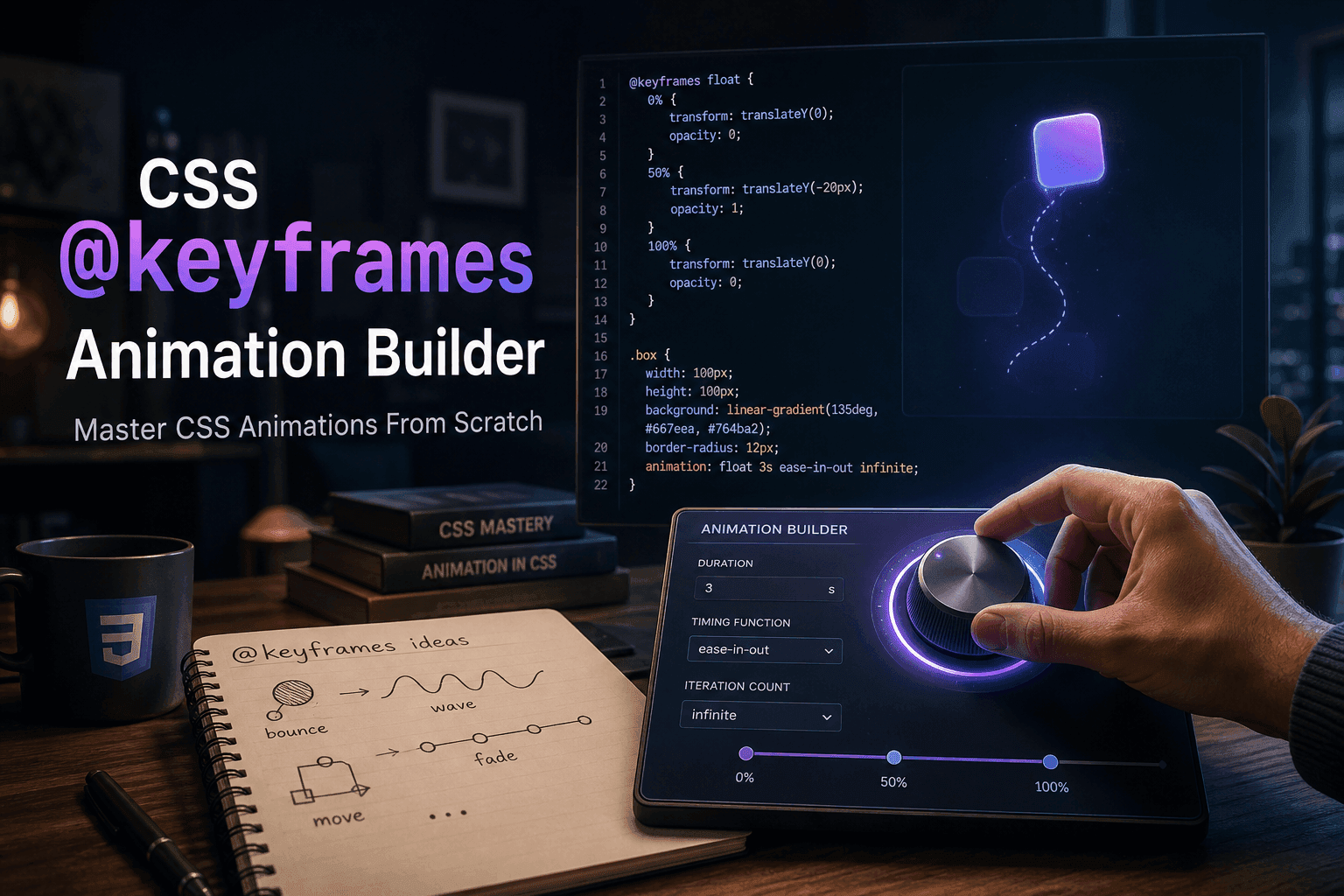
Understanding the API is essential, but the fastest way to iterate on animation feel is to change values and see the result instantly. The CSS @keyframes Builder on CSSAWWWARDS lets you add stops at any percentage, assign any CSS property to any stop, configure all eight timing properties with dropdowns and inputs, and watch a live preview play back as you build — with a Replay button to restart the animation at any time.
Load one of the 8 built-in presets as a starting point, tune the timing and easing until the feel is right, then copy the complete output: the @keyframes block and the .animated-element { animation: ... } declaration together. Drop it into your project and it works as-is.
What is @keyframes in CSS?
@keyframes is a CSS at-rule that defines the stages of a CSS animation. You give it a name and specify CSS property values at different percentage points (0%–100% or from/to). The name is referenced by the animation-name property on any element you want to animate.
What is the CSS animation shorthand?
The animation shorthand sets all 8 sub-properties at once: name duration timing-function delay iteration-count direction fill-mode play-state. Only name and duration are required. Example: animation: slide-in 0.5s ease-out forwards.
What CSS properties are safe to animate for performance?
Only opacity and transform are fully GPU-accelerated. Avoid animating width, height, margin, top, left, or any layout property — they trigger layout recalculation on every frame and cause jank.
What does animation-fill-mode: forwards do?
forwards retains the last keyframe's styles after the animation ends. Without it, the element snaps back to its original styles when the animation finishes. Use backwards to apply the first keyframe during the delay period, both for both behaviors.
How do I loop a CSS animation?
Set animation-iteration-count: infinite. Combine with animation-direction: alternate for a smooth ping-pong effect that doesn't jump at the end of each loop.
How do I respect prefers-reduced-motion in CSS animations?
Add a @media (prefers-reduced-motion: reduce) block that sets animation: none on all animated elements. This respects the OS accessibility setting for users who are sensitive to motion.
Is there a free CSS @keyframes generator?
Yes — the CSSAWWWARDS CSS @keyframes Builder lets you build animations visually, preview them live, and copy production-ready CSS. 8 presets included, free and no signup required.
