
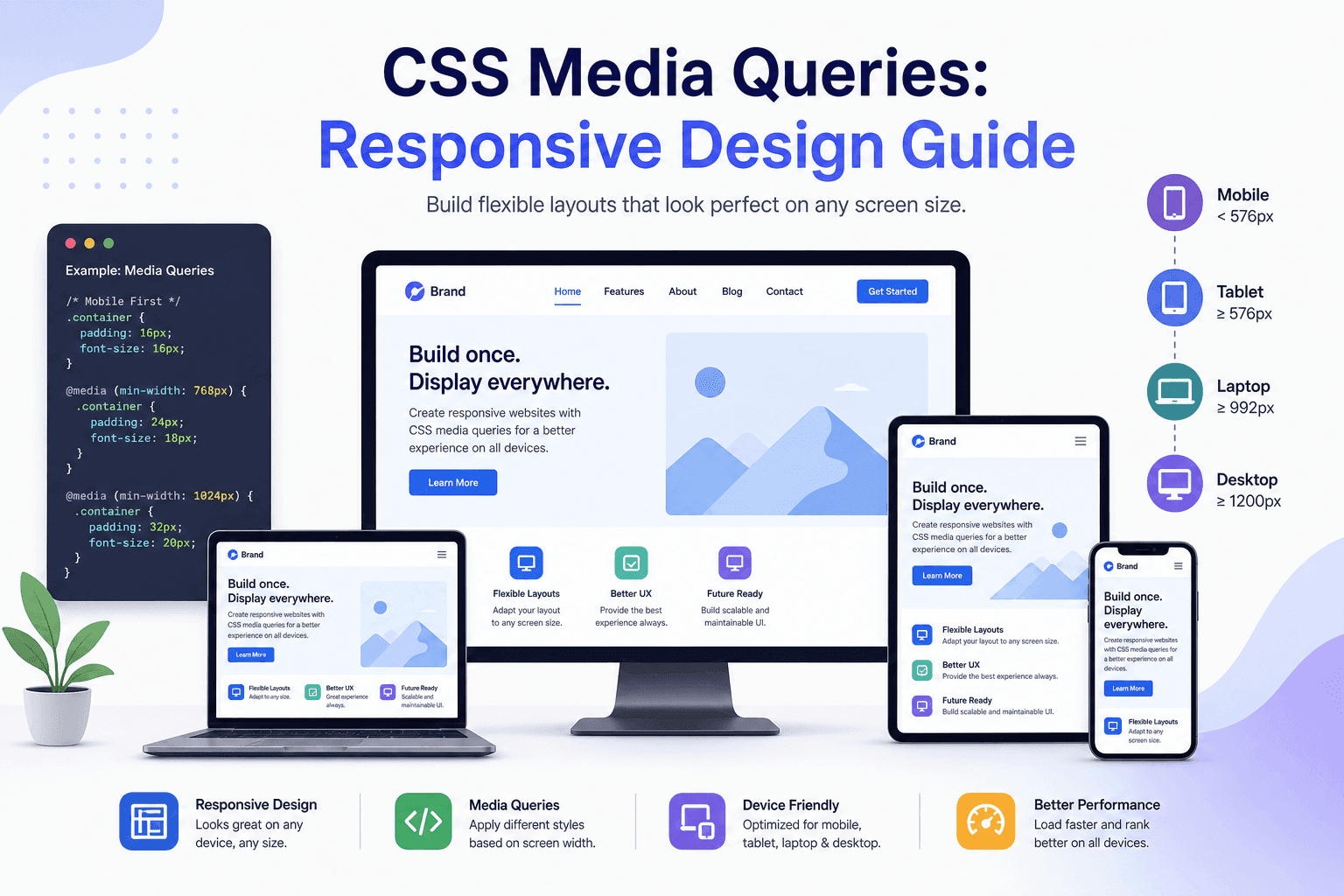
What Are CSS Media Queries?
Quick Answer
CSS media queries are conditional rules that apply styles only when certain device or environment conditions are met. They use the @media rule followed by a media condition — such as viewport width, orientation, or color scheme preference — to target specific contexts. They are the primary mechanism for building responsive websites.
A media query is a CSS at-rule that acts as a conditional gate: the styles inside it only take effect when the specified condition evaluates to true. The most common condition is viewport width — “apply these styles when the screen is at least 768 pixels wide” — but media queries can test for dozens of conditions including orientation, pixel density, color scheme preference, hover capability, and more.
Introduced in CSS2 and dramatically expanded in the CSS Media Queries Level 3 and Level 4 specifications, the @media rule is now the cornerstone of responsive web design. According to MDN Web Docs, media queries enable you to apply CSS styles depending on a device’s general type, specific characteristics, or environment. Every major browser has supported them for over a decade.
Before media queries, developers built separate desktop and mobile websites — a fundamentally broken experience as device sizes fragmented. Media queries made it possible to serve a single HTML document styled appropriately for any screen size, laying the groundwork for the modern responsive web.
Media queries vs. responsive design:Responsive design is the broader methodology — fluid grids, flexible images, and media queries working together. Media queries are the CSS tool that makes the “conditional styling” part of responsive design possible. You can use Flexbox and Grid for fluid layouts, but you still need media queries to restructure that layout at specific breakpoints.
Basic Media Query Syntax
Quick Answer
A media query starts with @media, followed by an optional media type (screen, print), then a media condition in parentheses, then a CSS block. Example: @media (min-width: 768px) { .nav { display: flex; } }. The styles inside apply only when the viewport is 768 px wide or wider.
The anatomy of a media query has three parts: the @media keyword, one or more media conditions, and a CSS declaration block. The simplest form tests a single condition:
/* Apply styles only when viewport is 768px wide or wider */@media (min-width: 768px) { .container { max-width: 960px; margin: 0 auto; padding: 0 32px; } .hero-title { font-size: 48px; }}The condition (min-width: 768px) is called a media feature. It reads: “is the viewport width at least 768 pixels?” When the answer is yes, the browser applies everything inside the block. When the answer is no — for example, on a 375 px phone screen — the block is completely ignored.
Combining conditions with logical operators
You can combine multiple media features using logical operators. and requires both conditions to be true. not negates a condition. The comma (,) acts as an or — the query matches if either condition is true. Since CSS Media Queries Level 4, you can also use or and not as explicit keywords within a single condition, along with range syntax: @media (768px <= width <= 1023px).
Tip: You can place @media rules anywhere in your stylesheet — at the top level, or nested inside another rule using a CSS preprocessor. The browser always evaluates conditions at the point of rendering. Putting all media queries together at the bottom of your file or in a separate stylesheet is a common pattern, though colocating them with the component they modify is often more maintainable in large projects.
Mobile-First vs Desktop-First
Quick Answer
Mobile-first CSS writes base styles for small screens first (no media query), then adds min-width queries to enhance the layout for larger screens. Desktop-first does the reverse with max-width queries. Mobile-first is the recommended approach in 2025: it produces leaner CSS, loads faster on mobile, and avoids specificity conflicts.
The choice between mobile-first and desktop-first is not just a matter of taste — it has real performance and maintainability implications. Mobile-first CSS ensures that mobile devices receive only the foundational styles they need, without loading overrides they will immediately discard. Desktop-first often produces heavier stylesheets because the mobile rules have to undo the desktop styles.
/* ── Base styles: mobile (no query needed) ─────────────── */.card { display: block; padding: 16px; font-size: 14px;} .nav { display: none; /* hidden on mobile */} /* ── Tablet: 768px and up ───────────────────────────────── */@media (min-width: 768px) { .card { display: flex; gap: 20px; padding: 24px; } .nav { display: flex; /* show nav on tablet+ */ }} /* ── Desktop: 1024px and up ─────────────────────────────── */@media (min-width: 1024px) { .card { padding: 32px; font-size: 16px; }}Notice that the mobile base styles exist outside any media query. This is intentional: there is no max-width: 767px query wrapping the mobile styles. Mobile devices parse the entire stylesheet but only execute the queries that match their viewport — so the fewer queries mobile devices trigger, the less work the browser does on constrained hardware.
Desktop-first (max-width) is not inherently wrong, but it tends to create cascading specificity problems and makes the stylesheet progressively harder to reason about as the number of breakpoints grows. Most modern CSS frameworks — including Tailwind CSS and Bootstrap 5 — are mobile-first by default.
Related reading: Once you have your breakpoints set, understanding Flexbox and Grid deeply makes each breakpoint far more expressive. See CSS Grid vs Flexbox: When to Use Each for a practical decision guide.
The 5 Essential Breakpoints for 2025
Quick Answer
The five standard 2025 breakpoints (popularised by Tailwind CSS) are: 640 px (sm), 768 px (md), 1024 px (lg), 1280 px (xl), and 1536 px (2xl). Write mobile base styles with no query, then add min-width queries only at the sizes where your layout genuinely needs to change.
Breakpoints should be determined by where your content breaks, not by specific device dimensions — there are simply too many screen sizes to target individual devices. That said, the following five breakpoints align with common device clusters and are used by Tailwind CSS, MUI, and most design systems in production today:
/* ── The 5 standard breakpoints for 2025 ───────────────── */ /* sm: 640px — large phones, small tablets in portrait */@media (min-width: 640px) {/* ... */ } /* md: 768px — tablets, large phones in landscape */@media (min-width: 768px) {/* ... */ } /* lg: 1024px — laptops, small desktops */@media (min-width: 1024px) {/* ... */ } /* xl: 1280px — standard desktop monitors */@media (min-width: 1280px) {/* ... */ } /* 2xl: 1536px — wide and ultrawide monitors */@media (min-width: 1536px) {/* ... */ }The table below summarises when each breakpoint fires and which device categories it targets:
| Breakpoint | Min-width | Target devices |
|---|---|---|
| Mobile (base) | — (base) | Phones under 640 px |
| Small (sm) | 640 px | Large phones, small tablets in portrait |
| Medium (md) | 768 px | Tablets, large phones in landscape |
| Large (lg) | 1024 px | Laptops, small desktops |
| XL (xl) | 1280 px | Standard desktop monitors |
| 2XL (2xl) | 1536 px | Wide and ultrawide monitors |
You do not need to use all five breakpoints on every project. A typical marketing site might only need md (768 px) and lg (1024 px). Only add breakpoints where your specific layout requires a change. Unnecessary breakpoints add cognitive overhead without improving the user experience.
Also see: How to Center a Div in CSS — responsive layouts frequently need reliable centring at each breakpoint. That guide covers every modern centring technique.
Media Features Beyond Width
Quick Answer
Beyond min-width and max-width, CSS media queries can test for orientation (portrait/landscape), aspect-ratio, resolution (pixel density for retina screens), hover (touch vs. pointer devices), and height. These let you tailor layouts and assets to the actual capabilities of the device.
Width is the most commonly queried feature, but the @media rule supports a rich set of conditions that go far beyond viewport dimensions. Understanding the full range of media features lets you build layouts that feel native on every device rather than just scaled versions of a desktop layout.
/* AND operator — both conditions must be true */@media (min-width: 768px) and (max-width: 1023px) { /* tablet-only styles */} /* Orientation query */@media (orientation: landscape) { .hero { min-height: 60vh; }} /* High-resolution / retina screens */@media (min-resolution: 2dppx) { .logo { background-image: url("/logo@2x.png"); background-size: 120px 40px; }} /* Hover capability — non-touch devices */@media (hover: hover) { .btn:hover { background: var(--color-accent); }}Key non-width media features
orientation: Tests whether the viewport is taller than it is wide (portrait) or wider than it is tall (landscape). Useful for adjusting hero section heights and navigation layouts on tablets, which flip between both orientations frequently.
resolution / min-resolution: Targets high-density (retina, HiDPI) displays. Use min-resolution: 2dppx to serve 2x images to retina screens while keeping 1x images on standard displays — an important performance optimisation.
hover: The (hover: hover)media feature is true on devices with a pointing device capable of hovering (mouse, trackpad), and false on touch-only devices. This lets you add hover effects exclusively where they will actually work, preventing the “stuck hover” bug on mobile where tap targets get permanently highlighted.
pointer: Distinguishes between fine pointer devices (mouse), coarse pointer devices (touch), and no pointer. Use (pointer: coarse) to increase tap target sizes and spacing for touch interfaces.
Dark Mode and Accessibility Media Features
Quick Answer
Three critical accessibility media features: prefers-color-scheme detects OS dark/light mode, prefers-reduced-motion detects users who need animations disabled, and prefers-contrast detects users who need higher contrast. Implementing all three is considered baseline accessibility practice in 2025.
The CSS Media Queries Level 5 specification introduced a set of “user preference” media features that query the user’s operating system accessibility settings. These are not about screen size — they are about respecting the user’s explicit preferences for how content is presented. Supporting them is both good engineering and an accessibility requirement under WCAG 2.2.
prefers-color-scheme
The most widely adopted preference query. Use it with CSS custom properties to implement a full dark mode with minimal code — redefine your design tokens inside the query and every component that uses those tokens automatically updates:
/* ── CSS custom properties with dark mode toggle ────────── */ :root { --bg: #ffffff; --text: #0f172a; --surface: #f8fafc; --border: #e2e8f0; --accent: #2563eb;} @media (prefers-color-scheme: dark) { :root { --bg: #0f172a; --text: #f1f5f9; --surface: #1e293b; --border: #334155; --accent: #60a5fa; }} /* All components automatically use the correct theme */body { background-color: var(--bg); color: var(--text);} .card { background: var(--surface); border: 1px solid var(--border);}This pattern pairs perfectly with the CSS custom properties system. By using variables throughout your codebase and only changing their values inside the media query, you avoid writing duplicate CSS for every individual component.
prefers-reduced-motion
A significant percentage of users — including those with vestibular disorders, epilepsy, or motion sensitivity — have enabled “reduce motion” in their OS settings. Ignoring this preference can cause genuine physical discomfort. The safest implementation disables all transitions and animations by default when the preference is set:
/* Disable animations for users who prefer reduced motion */@media (prefers-reduced-motion: reduce) { *, *::before, *::after { animation-duration: 0.01ms !important; animation-iteration-count: 1 !important; transition-duration: 0.01ms !important; scroll-behavior: auto !important; }} /* More targeted approach — only opt-in where motion adds value */.hero-animation { animation: fadeSlideIn 0.6s ease-out;} @media (prefers-reduced-motion: reduce) { .hero-animation { animation: none; opacity: 1; /* ensure content is still visible */ }}prefers-contrast
prefers-contrast: more is set by users who need stronger contrast — including people with low vision or those using their device in bright sunlight. Responding to it is especially important for form elements, links, and small text:
/* Enhance contrast for users who need it */@media (prefers-contrast: more) { :root { --text: #000000; --bg: #ffffff; --border: #000000; } .btn { border: 2px solid currentColor; font-weight: 700; } a { text-decoration: underline; text-underline-offset: 3px; }}Accessibility note: Implementing these three queries covers the majority of CSS-level accessibility requirements. WCAG 2.2 Success Criterion 1.4.3 (Contrast Minimum) and 2.3.3 (Animation from Interactions) both have implications for media query usage. Consider them non-negotiable in any production project.
Container Queries: The Evolution of Responsive CSS
Quick Answer
Container queries let you style elements based on the size of a parent container rather than the viewport. Define a containment context with container-type: inline-size, then use @container (min-width: 400px) to apply styles when that specific container reaches that width. Browser support reached baseline in 2023.
Traditional media queries have one fundamental limitation: they respond to the viewport. This is a problem for reusable components that appear in different layout contexts — a card component in a narrow sidebar needs different styles than the same card in a wide main column, but a viewport-based media query cannot distinguish between them.
Container queries solve this. They query the available width of a parent element, making components truly self-contained and context-aware. According to Can I Use, CSS container queries have over 90% global browser support as of 2025.
/* ── Container queries ───────────────────────────────────── */ /* 1. Define a containment context on the parent */.card-wrapper { container-type: inline-size; container-name: card; /* optional — for named containers */} /* 2. Query the container's width, not the viewport */.card { display: block; padding: 16px;} @container (min-width: 400px) { .card { display: flex; gap: 16px; padding: 24px; }} @container (min-width: 600px) { .card { padding: 32px; font-size: 16px; } .card__image { width: 200px; flex-shrink: 0; }}When to use container queries vs. media queries
Use media queries for page-level layout decisions — overall grid structure, navigation patterns, sidebar visibility, typography scale. Use container queries for component-level decisions — how a card, a data table, or a form renders based on the space it has been given. The two systems are complementary, not competing.
Container queries are a significant shift in how we write responsive CSS. Rather than asking “how wide is the viewport?”, a component asks “how wide is my container?” — a much more useful question for design system components that need to work in many different placements without custom overrides.
Media Query Performance and Best Practices
Quick Answer
Key media query best practices for 2025: use mobile-first (min-width) over desktop-first, only add breakpoints where the content actually breaks, avoid redundant nested queries, use CSS custom properties to reduce duplicated values across queries, and never use media queries to toggle JavaScript-driven components.
Media queries themselves have negligible performance cost — browsers are highly optimised for evaluating them. The performance impact comes from how you write the CSS inside those queries. Here are the most impactful best practices:
/* ── DO: Mobile-first with min-width ───────────────────── */.grid { display: grid; grid-template-columns: 1fr; /* 1 column on mobile */ gap: 16px;} @media (min-width: 768px) { .grid { grid-template-columns: repeat(2, 1fr); /* 2 on tablet */ gap: 24px; }} @media (min-width: 1024px) { .grid { grid-template-columns: repeat(3, 1fr); /* 3 on desktop */ }} /* ── AVOID: Desktop-first with max-width ────────────────── *//* (more specificity conflicts, harder to maintain) */.grid { display: grid; grid-template-columns: repeat(3, 1fr); /* starts desktop */} @media (max-width: 1023px) { .grid { grid-template-columns: repeat(2, 1fr); }} @media (max-width: 767px) { .grid { grid-template-columns: 1fr; }}Do not use media queries for everything
Modern CSS layout tools — Flexbox with flex-wrap, CSS Grid with auto-fill and minmax(), and container queries — can handle many layout adjustments intrinsically, without any media queries at all. A grid with grid-template-columns: repeat(auto-fill, minmax(280px, 1fr)) automatically wraps to fewer columns on smaller screens. Reserve media queries for layout changes that cannot be expressed with intrinsic sizing.
Content-based breakpoints
Add a breakpoint only when your design breaks — not to match a specific device. Open your browser devtools, drag the viewport narrow until the layout looks wrong, then add a breakpoint at that point. This produces fewer, more meaningful breakpoints than trying to target every device category, and the result is more resilient as new device sizes emerge.
Use CSS custom properties to avoid duplication
Instead of rewriting entire rulesets inside media queries, redefine only the custom properties that change. This is the same approach shown in the dark mode section — it drastically reduces the number of declarations inside your queries and keeps each query focused on a single concern (value changes) rather than complete style overrides.
Further reading: CSS Custom Properties (Variables) — The Complete Guide explains how to architect a token system that pairs perfectly with media queries for theming and responsive design at scale.
Frequently Asked Questions
- What is the difference between min-width and max-width in media queries?
min-widthapplies styles when the viewport is at least the specified width — used in mobile-first CSS to progressively enhance the layout as the screen grows.max-widthapplies styles when the viewport is at most the specified width — used in desktop-first CSS to strip back styles as the screen shrinks. Mobile-first withmin-widthis recommended in 2025 because it produces leaner CSS, performs better on mobile devices, and avoids cascade conflicts.- What is mobile-first CSS development?
- Mobile-first CSS means writing your base styles for small (mobile) screens first — without any media query wrapper — and then layering on additional styles for larger screens using
min-widthmedia queries. The mobile layout is the default, and the stylesheet becomes progressively richer as the viewport widens. Mobile devices download only the base CSS and the queries that match their size, which improves load performance on constrained mobile networks. - How do I write a CSS dark mode media query?
- Use
@media (prefers-color-scheme: dark)to detect the user’s OS dark mode setting. Inside the query, redefine your CSS custom properties — for example,--bg: #0f172a; --text: #f1f5f9;— so the entire theme switches automatically without JavaScript. Any component that consumes those custom properties will update immediately. You can also add adata-themeattribute toggle for a manual override. - What are CSS container queries and how are they different from media queries?
- Media queries respond to the viewport size, while container queries respond to the size of a specific parent element. Define a containment context with
container-type: inline-sizeon a parent, then use@container (min-width: 400px)to style children based on that parent’s width. Container queries are ideal for reusable UI components — a card or a form that must adapt to multiple layout slots without custom overrides at each placement. Browser support is over 90% globally as of 2025. - What breakpoints should I use in 2025?
- The five standard breakpoints used by Tailwind CSS and most modern design systems are: 640 px (sm), 768 px (md), 1024 px (lg), 1280 px (xl), and 1536 px (2xl). Write base styles for mobile (under 640 px) without any query, then add
min-widthqueries only at the breakpoints where your layout genuinely needs to change. Most projects only need two or three of the five.
Conclusion
CSS media queries remain the foundational tool for responsive web design in 2025. The core pattern — mobile-first base styles followed by min-width breakpoints — has been the industry standard for years, and for good reason: it produces clean, performant, progressively enhanced CSS that works on every screen size.
Beyond breakpoints, the modern @media rule gives you powerful access to user preferences: dark mode, reduced motion, and high contrast. Implementing all three is a baseline accessibility requirement and a mark of professional CSS craftsmanship. Each query requires only a handful of lines to implement when you use CSS custom properties correctly.
Container queries are the most significant addition to responsive CSS in years. They solve the fundamental limitation of viewport-based queries for component-level styling. If you are building a design system or a component library, invest time in understanding container queries now — they will become as standard as Flexbox within the next few years.
For the complementary skills that make media queries most effective, see CSS Grid vs Flexbox for layout decisions at each breakpoint, and How to Center a Div in CSS for the centring techniques that every responsive layout relies on.
Share this article