
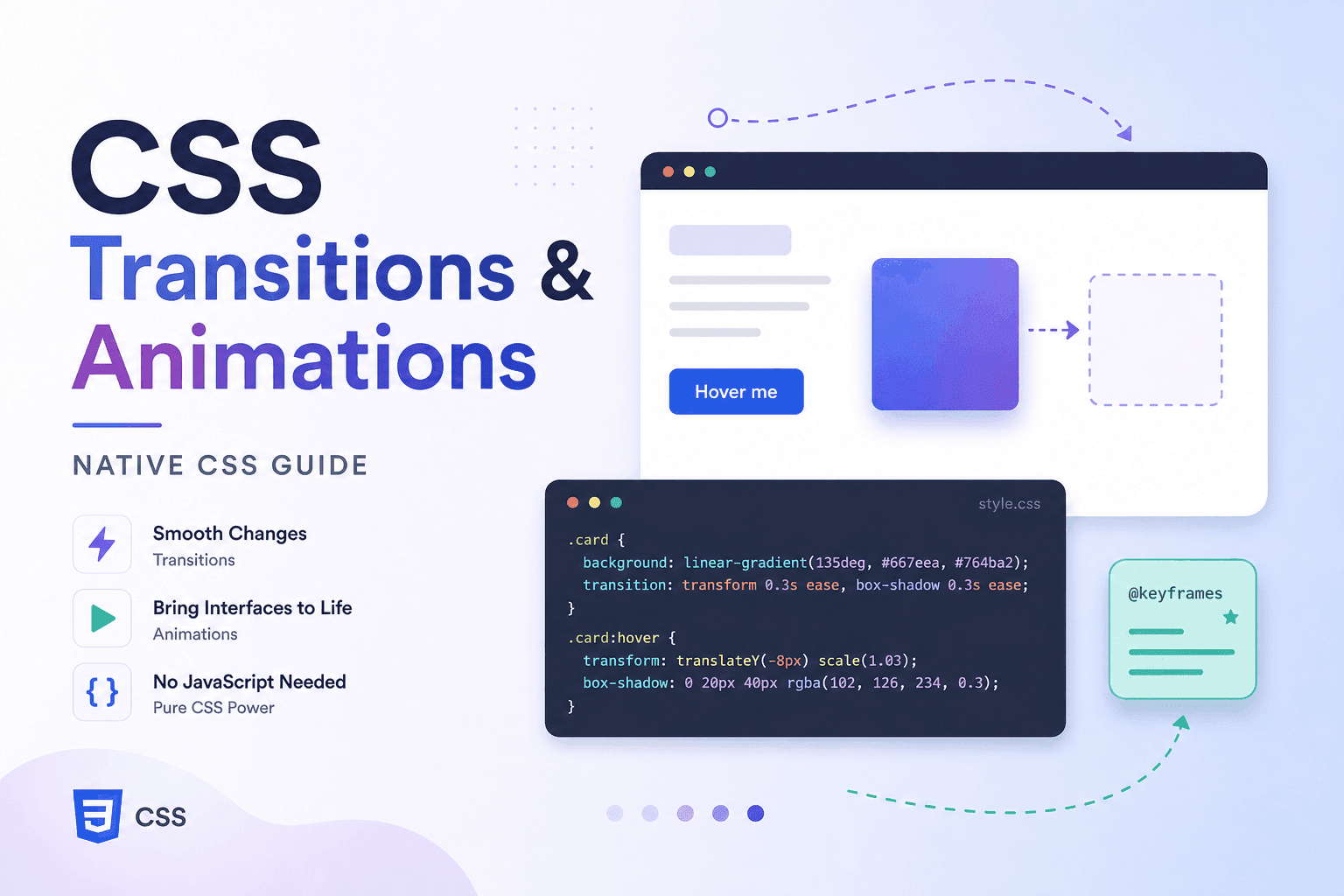
CSS Transitions vs Animations: What’s the Difference?
Quick Answer
CSS transitions interpolate a property between two states (A → B) when a trigger — like :hover or :focus — fires. CSS animations use @keyframes to define multi-step sequences that can loop, auto-play without user interaction, and run in reverse. Transitions are simpler; animations are more powerful.
CSS gives you two distinct motion systems. The transition property watches a CSS property and smoothly interpolates it between its current and new value whenever that property changes. It is declarative, requires no JavaScript, and covers the vast majority of UI microinteractions — hover effects, focus rings, colour changes, button states.
CSS animation paired with @keyframes is more expressive: you define a named timeline of property values at specific percentage points, then attach that timeline to any element. Animations can loop indefinitely, run in reverse, alternate direction, and start automatically on page load with no user input required.
The practical rule: reach for transition first. If your animation requires more than two states, needs to loop, or should start without user interaction, upgrade to @keyframes.
Spec reference: CSS Transitions are defined in the W3C CSS Transitions Level 1 specification. CSS Animations are covered by the W3C CSS Animations Level 1 specification. Both are at Candidate Recommendation status and supported in every modern browser.
The CSS transition Property: Syntax and All Values
Quick Answer
The transition shorthand accepts four values: property (which CSS property to watch), duration (how long the animation takes, in s or ms), timing-function (the speed curve), and delay (wait time before starting). Only property and duration are required.
The transition property is a shorthand for four sub-properties: transition-property, transition-duration, transition-timing-function, and transition-delay. You can list multiple transitions separated by commas, which is the recommended approach rather than using transition: all.
/* Basic transition on a button */button { background: #1D9E75; color: #fff; transform: translateY(0); transition: background 200ms ease, transform 150ms ease;} button:hover { background: #158a63; transform: translateY(-2px); /* subtle lift */} button:active { transform: translateY(0); /* press-down feedback */}A common mistake is using transition: all to animate every property simultaneously. While convenient, it animates properties you never intended — including layout-triggering ones — and can cause unexpected behaviour when properties are added later. Always be explicit about which properties you are transitioning.
/* ✗ Avoid: transition: all animates EVERY property change, including ones you don't intend — can hurt performance */.card { transition: all 300ms ease;} /* ✓ Better: list only the properties you intend to animate */.card { transition: box-shadow 250ms ease, transform 200ms ease;} .card:hover { box-shadow: 0 8px 24px rgba(0,0,0,0.12); transform: translateY(-4px);}The delay value is particularly useful for staggered effects: apply the same keyframe animation to a list of items but give each one an incrementally larger transition-delay (or animation-delay) to create a cascade. This is achievable in pure CSS using :nth-child selectors or CSS custom properties passed via inline style from your framework.
Timing Functions: ease, linear, cubic-bezier Explained
Quick Answer
CSS ships with six built-in timing functions: ease (default, slow-fast-slow), linear (constant), ease-in (slow start), ease-out (slow end), ease-in-out (slow both ends), and step-start / step-end (discrete jumps). Use cubic-bezier(x1, y1, x2, y2) for custom curves.
The timing function controls the rate of change over the animation’s duration. A linear animation moves at constant speed throughout. The ease function — the default — starts quickly, then decelerates, which feels more natural to the human eye. ease-out is the most “physical” choice for elements entering the screen, while ease-in suits elements exiting the viewport.
/* All 6 built-in timing functions */.ease { transition-timing-function: ease; } /* default: slow-fast-slow *//* default: slow-fast-slow */.linear { transition-timing-function: linear; } /* constant speed *//* constant speed */.ease-in { transition-timing-function: ease-in; } /* starts slow *//* starts slow */.ease-out { transition-timing-function: ease-out; } /* ends slow *//* ends slow */.ease-in-out { transition-timing-function: ease-in-out; } /* slow at both ends *//* slow at both ends */ /* Custom curve with cubic-bezier(x1, y1, x2, y2) *//* Values: two control points of a Bézier curve */.spring { transition-timing-function: cubic-bezier(0.34, 1.56, 0.64, 1); /* Overshoots slightly — mimics a spring bounce */} /* step() function — jumps between discrete states */.tick { transition-timing-function: steps(4, end); /* 4 equal jumps */}cubic-bezier() defines a custom Bézier curve using four numbers: the x and y coordinates of two control points. Values for y can exceed 0–1, which creates overshoot effects (spring-like bounce). Tools like MDN’s CSS Animations documentation include interactive curve editors to help you visualise the relationship between the four values and the resulting motion.
When to use each timing function
ease-out is the most versatile choice for UI animations — things decelerating to rest feel physically believable. Use ease-in for elements leaving the screen (they accelerate away). Use linear for continuous loops like spinners and progress bars where constant speed is the correct behaviour. Reserve cubic-bezier for branded motion that requires a distinctive feel — spring effects, playful overshoots.
@keyframes: Building Multi-Step Animations
Quick Answer
@keyframes animationName { from { ... } to { ... } } defines a named animation timeline. Use from / to for two states, or percentage stops (0%, 50%, 100%) for multi-step sequences. Assign any animatable CSS properties at each stop. Apply the animation to an element via animation-name.
@keyframes rules are defined at the top level of a stylesheet (not inside a selector) and given a unique name. That name is then referenced by the animation-name property on any element you want to animate. Multiple elements can share the same @keyframes rule.
/* Two-state: from / to */@keyframes fadeIn { from { opacity: 0; transform: translateY(8px); } to { opacity: 1; transform: translateY(0); }} /* Percentage stops — multi-step */@keyframes pulse { 0% { transform: scale(1); } 50% { transform: scale(1.08); } 100% { transform: scale(1); }} /* Multiple properties at each stop */@keyframes slideIn { 0% { opacity: 0; transform: translateX(-24px); } 60% { opacity: 1; transform: translateX(4px); } 100% { opacity: 1; transform: translateX(0); }}You can animate any number of CSS properties simultaneously within a single @keyframes rule. Properties not mentioned at a given stop are interpolated from the nearest stops that do mention them. This means you do not need to repeat every property at every percentage point — only specify what changes at each step.
Naming conventions: keyframe names are case-sensitive and follow CSS identifier rules. Descriptive names like fadeInUp, shimmer, or skeletonPulse make your stylesheet self-documenting. Avoid names that conflict with CSS keyword values.
CSS Animation Properties: The Complete Reference
Quick Answer
CSS animations have eight sub-properties: animation-name, animation-duration, animation-timing-function, animation-delay, animation-iteration-count, animation-direction, animation-fill-mode, and animation-play-state. The animation shorthand accepts all eight in that order.
Understanding each sub-property individually gives you precise control. Here is the complete reference table, followed by code showing all eight written out and then combined into shorthand.
| Property | Values | Default |
|---|---|---|
animation-name | keyframe name or none | none |
animation-duration | time in s or ms | 0s |
animation-timing-function | ease, linear, cubic-bezier() | ease |
animation-delay | time in s or ms | 0s |
animation-iteration-count | number or infinite | 1 |
animation-direction | normal, reverse, alternate, alternate-reverse | normal |
animation-fill-mode | none, forwards, backwards, both | none |
animation-play-state | running, paused | running |
/* All 8 animation sub-properties written out */.hero-badge { animation-name: pulse; /* @keyframes name */ animation-duration: 1.2s; /* how long one cycle takes */ animation-timing-function: ease-in-out; /* timing curve */ animation-delay: 0.3s; /* wait before first play */ animation-iteration-count: infinite; /* how many times (or number) */ animation-direction: alternate; /* normal | reverse | alternate | alternate-reverse */ animation-fill-mode: both; /* none | forwards | backwards | both */ animation-play-state: running; /* running | paused */} /* Shorthand: name duration timing delay count direction fill play-state */.hero-badge { animation: pulse 1.2s ease-in-out 0.3s infinite alternate both running;}animation-fill-mode in depth
animation-fill-mode is one of the most misunderstood properties. By default (none), the element reverts to its pre-animation styles the moment the animation ends — which can cause a jarring visual snap. forwards retains the final keyframe styles. backwards applies the first keyframe styles during the delay period. both combines both behaviours and is the safest default for most use cases.
/* forwards — element keeps end-state styles after animation */.toast { opacity: 0; animation: fadeIn 400ms ease forwards; /* After 400ms, stays at opacity: 1 instead of snapping back */} /* infinite — spinner loops forever */.loader { animation: spin 800ms linear infinite;}@keyframes spin { to { transform: rotate(360deg); }} /* alternate — badge pulses back and forth (no jarring jump) */.badge { animation: pulse 1s ease-in-out infinite alternate;}@keyframes pulse { from { transform: scale(1); opacity: 1; } to { transform: scale(1.1); opacity: 0.8; }}animation-play-state: paused is powerful for building interactive animations — for example, pausing a background animation while the user is hovering over it, or stopping a timer animation via JavaScript by toggling a CSS class.
Which CSS Properties Are Safe to Animate?
Quick Answer
Only transform and opacity are guaranteed to run on the GPU compositor thread without triggering layout or paint. Animate these exclusively for 60fps animations. Avoid animating width, height, margin, padding, top, left, and font-size — they cause expensive layout recalculations on every frame.
The browser rendering pipeline has three expensive stages: layout (computing element sizes and positions), paint (filling pixels into layers), and composite (combining layers onto screen). Animating a property that triggers layout forces the browser to recompute the position of every affected element on every frame — which at 60fps means dozens of full layout recalculations per second.
Performance Warning
Animating width, height, top, left, margin, padding, or font-size triggers layout on every frame. On a mid-range mobile device, this can cause visible jank at 60fps. Always profile with DevTools before shipping layout-animating code.
/* ✓ SAFE — composited properties: GPU, no layout/paint cost */.card { transition: transform 200ms ease, opacity 200ms ease;}.card:hover { transform: scale(1.03); opacity: 0.9;} /* ✗ AVOID — triggers layout (reflow) on every frame */.card-slow { transition: width 200ms ease, height 200ms ease, margin 200ms ease, padding 200ms ease;} /* ✗ AVOID — triggers paint on every frame */.card-paint { transition: background-color 200ms ease, /* paint cost */ border-radius 200ms ease, /* paint cost *//* paint cost */ box-shadow 200ms ease; /* paint cost — use filter: drop-shadow instead *//* paint cost — use filter: drop-shadow instead */}The practical rule: simulate layout changes using transform. Need to move an element? Use transform: translate(), not top / left. Need to resize it visually? Use transform: scale(), not width / height. The visual result is identical; the performance cost is dramatically lower.
will-change: the browser hint
will-change: transform, opacity hints to the browser that an element is about to be animated, allowing it to promote the element to its own compositor layer before the animation starts. This eliminates the promotion cost during the animation itself. Use it sparingly — every promoted layer consumes GPU memory, and over-use causes the browser to run out of compositor memory, which is worse than not using it at all.
/* Hint the browser to promote element to its own layer before a known animation is about to start */ /* ✓ Correct usage — add just before animation */.modal { will-change: transform, opacity; animation: slideUp 300ms ease forwards;} /* ✓ Via JavaScript — add before, remove after *//* button.addEventListener('mouseenter', () => { card.style.willChange = 'transform'; }); button.addEventListener('mouseleave', () => { card.style.willChange = 'auto'; // release GPU layer }); */ /* ✗ Avoid applying to everything — wastes GPU memory *//* * { will-change: transform; } */Accessibility: prefers-reduced-motion
Quick Answer
@media (prefers-reduced-motion: reduce) matches users who have enabled “Reduce Motion” in their OS accessibility settings. Inside this query, disable or simplify all animation and transition declarations. This is an accessibility requirement — vestibular disorders, epilepsy, and motion sensitivity make gratuitous animation a genuine health concern for some users.
The prefers-reduced-motion media feature has been supported in all major browsers since 2019. When a user enables “Reduce Motion” (macOS, iOS), “Remove Animations” (Android), or “Show animations” off (Windows), this media query resolves to reduce.
Motion sickness, vestibular disorders, and photosensitive epilepsy are real conditions that affect a significant percentage of users. The WCAG 2.1 Success Criterion 2.3.3 (Level AAA) requires that motion animation triggered by interaction can be disabled. Respecting prefers-reduced-motion is the CSS-native way to meet this criterion without requiring any user interaction.
/* Respect the user's OS "Reduce Motion" setting */ /* Option A — disable all animations globally */@media (prefers-reduced-motion: reduce) { *, *::before, *::after { animation-duration: 0.01ms !important; animation-iteration-count: 1 !important; transition-duration: 0.01ms !important; scroll-behavior: auto !important; }} /* Option B — opt-in: only animate when motion is OK */@media (prefers-reduced-motion: no-preference) { .card { transition: transform 200ms ease, opacity 150ms ease; } @keyframes fadeIn { from { opacity: 0; transform: translateY(8px); } to { opacity: 1; transform: translateY(0); } } .hero { animation: fadeIn 600ms ease both; }}The two patterns above represent different philosophies. Option A (“disable everything”) is a safe global reset — apply it as a base and then opt elements back in if the animation is essential to understanding. Option B (“opt-in”) wraps all animations in no-preference from the start, so reduced-motion users never receive animations by default. For new projects, Option B is the recommended approach as it makes the accessibility posture explicit.
Testing tip: In Chrome DevTools, open the Rendering panel (More Tools → Rendering) and toggle “Emulate CSS media feature prefers-reduced-motion” to test without changing your OS settings. In Firefox, about:config → ui.prefersReducedMotion can be set to 1.
CSS Animations vs JavaScript: When to Use Each
Quick Answer
Use CSS for hover effects, entrance animations, loaders, and anything declarative. Use JavaScript (GSAP, Framer Motion, Web Animations API) for scroll-triggered animations, physics-based motion, complex sequential chains, animations driven by runtime data, or anything that needs to be cancelled or reversed programmatically.
Native CSS animations have zero JavaScript runtime cost — the browser handles them entirely in the compositor thread. They are also simpler to write for straightforward use cases, easier to keep in sync with design tokens, and trivially respond to media queries. For the majority of UI animation — hover states, loading indicators, entrance effects, skeleton screens — CSS is the right tool.
JavaScript animation libraries unlock capabilities that CSS alone cannot provide: spring physics (GSAP’s Elastic ease), scroll-linked progress (ScrollTrigger), complex orchestration with callbacks between steps, animations driven by user gesture velocity, and fine-grained cancellation or reversal. Read more in Best CSS Animation Libraries for 2025 for a curated comparison of GSAP, Framer Motion, Motion One, and Anime.js.
/* ── Side-by-side: CSS animation vs JavaScript equivalent ── */ /* CSS — self-contained, no runtime cost */@keyframes fadeSlideIn { from { opacity: 0; transform: translateY(12px); } to { opacity: 1; transform: translateY(0); }}.card { animation: fadeSlideIn 400ms ease-out both; } /* JavaScript equivalent (Web Animations API) *//* card.animate( [ { opacity: 0, transform: 'translateY(12px)' }, { opacity: 1, transform: 'translateY(0)' }, ], { duration: 400, easing: 'ease-out', fill: 'both' } ); */ /* JavaScript shines for: sequential chains, physics, scroll-triggered, dynamic values, or cancellable animations */| Use Case | CSS | JavaScript |
|---|---|---|
| Simple hover effects | ✓ Best | — |
| Page transitions | ✓ Good | ✓ More control |
| Physics / spring animations | — | ✓ Best (GSAP / Framer) |
| Scroll-triggered animations | Limited | ✓ Best |
| Sequential complex chains | Limited | ✓ Best |
| Performance (simple) | ✓ Best | — |
CSS scroll-driven animations (animation-timeline: scroll() and view()) landed in all major browsers in 2023–2024 and are beginning to close the gap with JavaScript for scroll-linked effects. See CSS Performance Optimisation Guide 2025 for how scroll-driven animations fit into a performance-conscious animation strategy.
Frequently Asked Questions
- What is the difference between CSS transitions and CSS animations?
- CSS transitions interpolate a property from one value to another when a state change occurs — like
:hoveror a class toggle. They run once and need a trigger. CSS animations use@keyframesto define multi-step timelines that can loop, auto-play without user interaction, and run in multiple directions. Transitions are simpler; animations are more expressive. - How do I make a CSS animation loop forever?
- Set
animation-iteration-count: infinite. In shorthand:animation: spin 1s linear infinite. This loops the animation indefinitely until the element is removed from the DOM or theanimation-play-stateis set topaused. - Which CSS properties can I animate without hurting performance?
transform(translate, scale, rotate, skew) andopacityare the only properties that run on the GPU compositor thread without triggering layout or paint. Avoid animatingwidth,height,margin,padding,top,left, orfont-size— they trigger expensive layout recalculations on every frame.- What does animation-fill-mode: forwards do in CSS?
animation-fill-mode: forwardsmakes the element retain the CSS values of the final keyframe after the animation finishes. Without it, the element snaps back to its original styles when the animation ends. Use it for one-shot animations — toast notifications, entrance effects — where you want the end state to persist.- How do I respect prefers-reduced-motion in CSS?
- Use
@media (prefers-reduced-motion: reduce)to detect the user’s OS “Reduce Motion” preference and disable or simplify animations inside it. The safest global approach is to setanimation-duration: 0.01msandtransition-duration: 0.01mson all elements inside this query. This is an accessibility requirement for users with vestibular disorders or motion sensitivity.
Conclusion
CSS gives you two complementary animation systems that together cover nearly every motion design pattern on the web. The transition property handles state-change interpolation elegantly in a single line. @keyframes with its eight companion animation-* properties handles everything more complex — looping spinners, multi-step entrance effects, skeleton screens, progress indicators.
The highest-impact habits to adopt are these three: always specify individual properties instead of transition: all, animate only transform and opacity for any animation that must run at 60fps, and always include a prefers-reduced-motion override. These three practices together give you smooth, accessible, maintainable animations with no JavaScript required.
For cases where CSS hits its limits — scroll-driven orchestration, spring physics, gesture-velocity animations — explore the libraries covered in Best CSS Animation Libraries for 2025. And for a broader look at keeping CSS fast as your stylesheet grows, see the CSS Performance Optimisation Guide 2025.
Share this article