
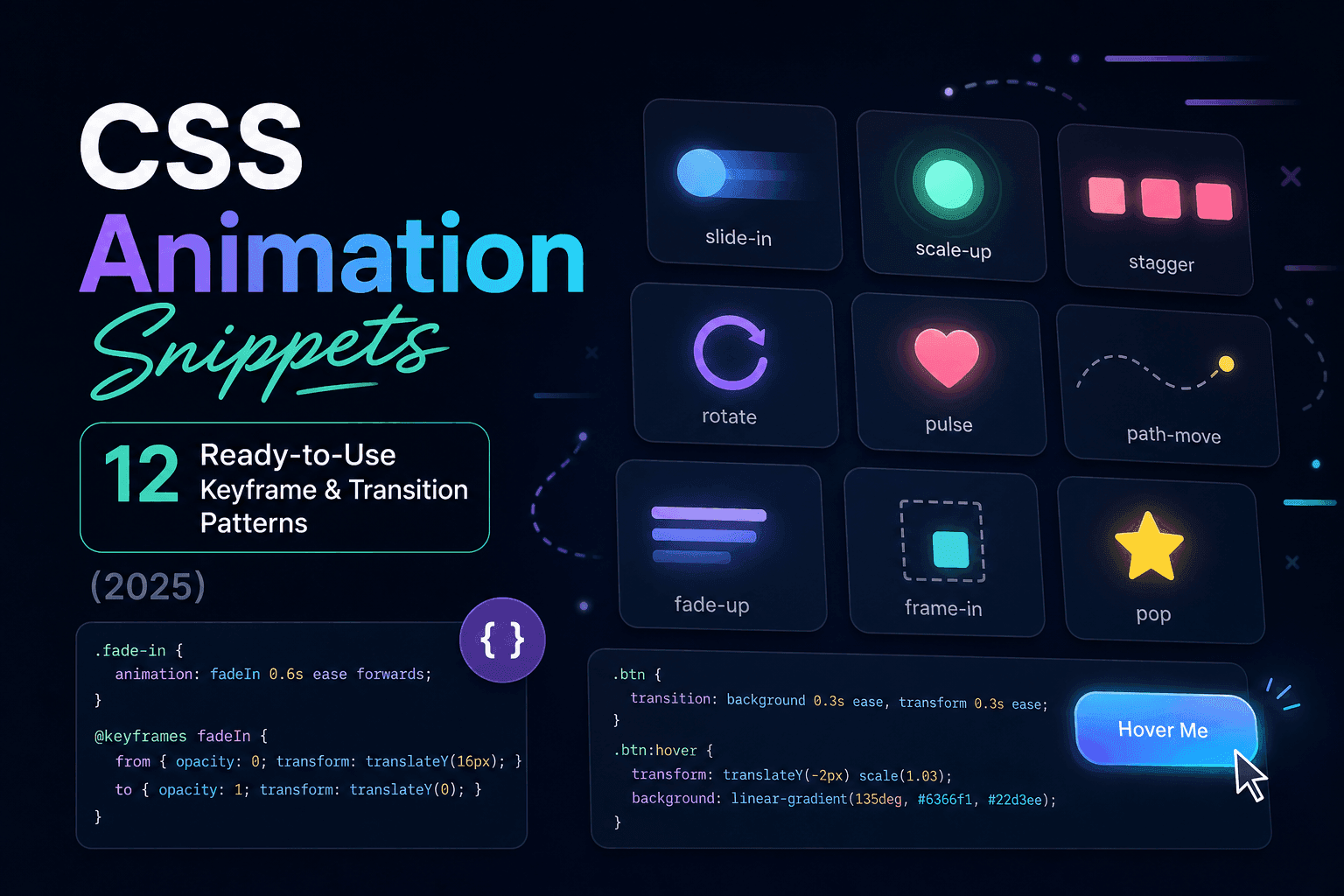
Transitions vs Animations — Which to Use?
Quick answer: Use transition for interactive state changes (hover, focus, active) that move between exactly two states. Use @keyframes + animation for anything that loops, has more than two stages, runs automatically without user interaction, or needs precise timing control across multiple properties.
CSS transitions are the simpler tool. Define which properties to animate, how long, and which easing function — then let the browser handle the interpolation whenever the element's state changes. They are perfect for button hover effects, colour changes, and accordion expand/collapse.
CSS animations give you full control. You define every keyframe — the start, end, and any intermediate stages — and the animation runs on its own schedule, with or without user interaction. Use them for loading indicators, entrance animations that fire on page load, and any looping visual effect.
| Feature | transition | @keyframes + animation |
|---|---|---|
| Requires a trigger? | Yes (state change) | No — plays automatically |
| Number of stages | 2 (start → end) | Unlimited (0% … 100%) |
| Can loop? | No | Yes (infinite or N times) |
| Control timing per-stage? | No | Yes |
| Code complexity | Lower | Higher |
| Best for | Hover, focus, click effects | Loaders, entrance, looping effects |
Performance Rules for CSS Animations
transform and opacity. Everything else risks triggering layout recalculation (reflow) on every frame.The browser's rendering pipeline has three stages: layout (computing element sizes and positions), paint (filling pixels), and composite (assembling layers). Animating transform and opacity only triggers the composite stage — the cheapest of the three, handled by the GPU. Animating width, height, top, left, margin, or padding triggers all three stages on every frame, causing jank.
Practical Substitutions
/* Instead of animating width/height — animate transform: scale() */
/* Instead of animating top/left    — animate transform: translate() */
/* Instead of animating visibility  — animate opacity */

/* Adding will-change hints the browser to promote the element to its own layer */
.animated-element {
  will-change: transform, opacity;
}

/* Remove will-change after animation completes — it has a memory cost */
.animation-done {
  will-change: auto;
}
Use will-change sparingly — only on elements with known, complex animations that demonstrably benefit from GPU promotion. Applying it to many elements simultaneously wastes GPU memory and can actually degrade performance.
Fade Animation Snippets
Fade animations are the most universally applicable entrance effect. Combined with a small transform offset, they feel natural rather than mechanical.
Simple Fade-In
snippet
@keyframes fadeIn {
  from { opacity: 0; }
  to   { opacity: 1; }
}

.fade-in {
  animation: fadeIn 0.4s ease forwards;
}
Fade-In + Rise (Most Natural Entrance)
snippet
@keyframes fadeInUp {
  from {
    opacity: 0;
    transform: translateY(16px);
  }
  to {
    opacity: 1;
    transform: translateY(0);
  }
}

.fade-in-up {
  animation: fadeInUp 0.45s cubic-bezier(0.16, 1, 0.3, 1) both;
}
The cubic-bezier(0.16, 1, 0.3, 1) easing (a spring-like curve) makes the element decelerate sharply at the end, which feels far more natural than a linear or standard ease curve. The translateY(16px) offset is subtle enough to not be distracting but enough to suggest upward motion. Reduce to 8px for a more restrained effect.
Fade-Out
snippet
@keyframes fadeOut {
  from { opacity: 1; }
  to   { opacity: 0; }
}

.fade-out {
  animation: fadeOut 0.3s ease forwards;
  /* Note: element still occupies space after fading. */
  /* Use pointer-events: none or remove from DOM after animation. */
}
Loading Spinner Snippets
Classic Border Spinner
snippet
.spinner {
  width: 32px;
  height: 32px;
  border: 3px solid rgba(29, 158, 117, 0.2);
  border-top-color: #1D9E75;
  border-radius: 50%;
  animation: spin 0.7s linear infinite;
}

@keyframes spin {
  to { transform: rotate(360deg); }
}
The classic loading spinner: a circle with most of the border semi-transparent and one segment coloured, spinning continuously. Animate only transform: rotate() — composited by the GPU, no jank. Adjust the border width for thickness and 0.7s for speed.
Dual-Ring Spinner
snippet
.dual-spinner {
  position: relative;
  width: 40px;
  height: 40px;
}
.dual-spinner::before,
.dual-spinner::after {
  content: "";
  position: absolute;
  inset: 0;
  border-radius: 50%;
  border: 3px solid transparent;
}
.dual-spinner::before {
  border-top-color: #1D9E75;
  animation: spin 0.7s linear infinite;
}
.dual-spinner::after {
  border-bottom-color: #0ea5e9;
  animation: spin 1.1s linear infinite reverse;
}

@keyframes spin {
  to { transform: rotate(360deg); }
}
Two pseudo-elements create concentric rings spinning at different speeds and directions. No extra HTML elements required — the effect is entirely CSS-driven using ::before and ::after.
Dot Pulse Loader
snippet
.dot-loader {
  display: flex;
  gap: 6px;
  align-items: center;
}
.dot-loader span {
  width: 8px;
  height: 8px;
  border-radius: 50%;
  background: #1D9E75;
  animation: dotPulse 1.2s ease-in-out infinite;
}
.dot-loader span:nth-child(2) { animation-delay: 0.2s; }
.dot-loader span:nth-child(3) { animation-delay: 0.4s; }

@keyframes dotPulse {
  0%, 80%, 100% { transform: scale(0.6); opacity: 0.4; }
  40%           { transform: scale(1);   opacity: 1;   }
}
Slide & Entrance Animation Snippets
Slide-In from Left
snippet
@keyframes slideInLeft {
  from {
    opacity: 0;
    transform: translateX(-40px);
  }
  to {
    opacity: 1;
    transform: translateX(0);
  }
}

.slide-in-left {
  animation: slideInLeft 0.4s cubic-bezier(0.16, 1, 0.3, 1) both;
}
Slide-Down (Dropdown / Accordion)
snippet
/* Pure CSS slide-down — works with max-height transition */
.accordion-content {
  max-height: 0;
  overflow: hidden;
  transition: max-height 0.35s ease;
}

.accordion-content.open {
  max-height: 600px; /* Must be larger than actual content height */
}

/* Note: max-height animation has a timing quirk on close.
   For pixel-perfect animation, use the Web Animations API or
   a JS-measured height approach instead. */
The max-height transition trick is the most common pure-CSS accordion approach. The caveat: you must set max-height to a value larger than the actual content, and the close animation eases over the full max-height range rather than the actual content height — causing a delay before the close motion begins. For production accordions, JavaScript-measured height gives smoother results.
Pulse & Attention Loop Snippets
Notification Badge Pulse
snippet
.badge-pulse {
  position: relative;
}
.badge-pulse::after {
  content: "";
  position: absolute;
  inset: -3px;
  border-radius: 50%;
  border: 2px solid currentColor;
  animation: ripple 1.5s ease-out infinite;
}

@keyframes ripple {
  0%   { transform: scale(0.8); opacity: 0.8; }
  100% { transform: scale(1.8); opacity: 0; }
}
Heartbeat Attention Pulse
snippet
@keyframes heartbeat {
  0%   { transform: scale(1);    }
  14%  { transform: scale(1.08); }
  28%  { transform: scale(1);    }
  42%  { transform: scale(1.05); }
  70%  { transform: scale(1);    }
  100% { transform: scale(1);    }
}

.heartbeat {
  animation: heartbeat 1.3s ease-in-out infinite;
  transform-origin: center;
}
Skeleton Loading Screen Snippet
Skeleton screens replace content placeholders with animated grey blocks that suggest the shape of the loading content. They feel faster than spinners because they give users a structural preview of what's coming.
Shimmer Skeleton
snippet
.skeleton {
  background: linear-gradient(
    90deg,
    var(--color-border) 25%,
    rgba(200, 200, 200, 0.4) 50%,
    var(--color-border) 75%
  );
  background-size: 200% 100%;
  animation: shimmer 1.5s infinite;
  border-radius: 4px;
}

@keyframes shimmer {
  0%   { background-position: 200% 0; }
  100% { background-position: -200% 0; }
}

/* Usage examples */
.skeleton-title {
  height: 24px;
  width: 60%;
  margin-bottom: 12px;
}
.skeleton-line {
  height: 14px;
  width: 100%;
  margin-bottom: 8px;
}
.skeleton-line:last-child {
  width: 80%;
}
The shimmer effect is achieved by animating a background-position on a gradient that has a lighter midpoint. The gradient's 200% 100% background-size makes it wider than the element, so scrolling its position creates the sweeping light effect. Adjust the gradient colours for dark mode by changing the colour stops.
Staggered List Animation Snippet
Staggered animations make list items appear one after another with a small delay between each. The effect makes a list feel like it's being populated dynamically, even when the content is static.
snippet
@keyframes fadeInUp {
  from { opacity: 0; transform: translateY(12px); }
  to   { opacity: 1; transform: translateY(0); }
}

/* CSS-only stagger (fixed number of items) */
.stagger-list > * {
  animation: fadeInUp 0.4s cubic-bezier(0.16, 1, 0.3, 1) both;
}
.stagger-list > *:nth-child(1)  { animation-delay: 0.05s; }
.stagger-list > *:nth-child(2)  { animation-delay: 0.10s; }
.stagger-list > *:nth-child(3)  { animation-delay: 0.15s; }
.stagger-list > *:nth-child(4)  { animation-delay: 0.20s; }
.stagger-list > *:nth-child(5)  { animation-delay: 0.25s; }
.stagger-list > *:nth-child(6)  { animation-delay: 0.30s; }

/* JS-driven stagger for dynamic lists */
/* document.querySelectorAll('.stagger-list > *').forEach((el, i) => {
     el.style.animationDelay = (i * 0.05) + 's';
   }); */
For static lists, CSS-only nth-child delays work well up to about 8–10 items. For dynamic lists where the number of items is unknown, set the animation-delay via JavaScript using the element's index. Keep individual delays under 50ms — longer delays on large lists make the last items appear unresponsively slow.
Hover Transition Snippets
Card Lift on Hover
snippet
.card {
  transition: transform 0.2s ease, box-shadow 0.2s ease;
}
.card:hover {
  transform: translateY(-4px);
  box-shadow: 0 8px 24px rgba(0, 0, 0, 0.1);
}
Underline Slide-In on Hover
snippet
.underline-link {
  position: relative;
  text-decoration: none;
  color: var(--color-ink);
}
.underline-link::after {
  content: "";
  position: absolute;
  bottom: -2px;
  left: 0;
  width: 100%;
  height: 2px;
  background: var(--color-accent);
  transform: scaleX(0);
  transform-origin: right;
  transition: transform 0.3s ease;
}
.underline-link:hover::after {
  transform: scaleX(1);
  transform-origin: left;
}
The underline slides in from the left (on hover) and slides out to the right (on mouse-leave) — a directional effect achieved by toggling transform-origin between right (base state) and left (hover state). All animation happens via transform: scaleX() — GPU-composited and jank-free.
Reduced Motion Best Practice
Accessibility requirement:Users who have enabled “Reduce Motion” in their operating system have done so for a reason — vestibular disorders, epilepsy, motion sensitivity, or personal preference. Your animations must not play for these users.
snippet — wrap all animations in this pattern
/* Method 1: Opt-in (recommended) — animations only play if the user has NOT requested reduced motion */
@media (prefers-reduced-motion: no-preference) {
  .fade-in-up {
    animation: fadeInUp 0.45s cubic-bezier(0.16, 1, 0.3, 1) both;
  }
}

/* Method 2: Opt-out — animations play by default, disabled for reduced-motion users */
@media (prefers-reduced-motion: reduce) {
  *,
  *::before,
  *::after {
    animation-duration: 0.01ms !important;
    animation-iteration-count: 1 !important;
    transition-duration: 0.01ms !important;
    scroll-behavior: auto !important;
  }
}
Method 1 (opt-in) is the more deliberate approach — you only add animation to elements you have explicitly decided should animate. Method 2 (opt-out) is a catch-all safety net often added as a global reset in design systems. Use both: the global reset as a safety net, and opt-in wrappers around your intentional animations for clarity.
Browse all animation-related CSS snippets in the Animation Snippets category on CSSAwwwards, or explore our roundup of the 10 best CSS animation libraries in 2025 for complex sequences.
FAQ
- What CSS properties are safe to animate for performance?
- Animate only
transformandopacity. These run on the compositor thread (GPU) and do not trigger layout recalculation. Avoid animatingwidth,height,top,left,margin, orbackground-coloron performance-sensitive components. - How do I make a CSS animation play only once?
animation-iteration-count: 1is the default, so single-play is automatic. To keep the element in its final state after the animation ends, addanimation-fill-mode: forwards(or use thebothkeyword in the animation shorthand).- What is the difference between CSS transitions and CSS animations?
- Transitions need a trigger (state change). Animations run independently, can loop, and support multiple keyframe stages. Use transitions for hover/focus effects; use
@keyframesfor looping indicators, entrance animations, and effects that run without user interaction. - How do I pause a CSS animation?
animation-play-state: pausedpauses a running animation. Toggle it via a CSS class or JavaScript. Add the class on hover, or via a play/pause button for looping animations.
Frontend developer and curator at CSSAwwwards. Writes about CSS animations, layout systems, and frontend performance.