
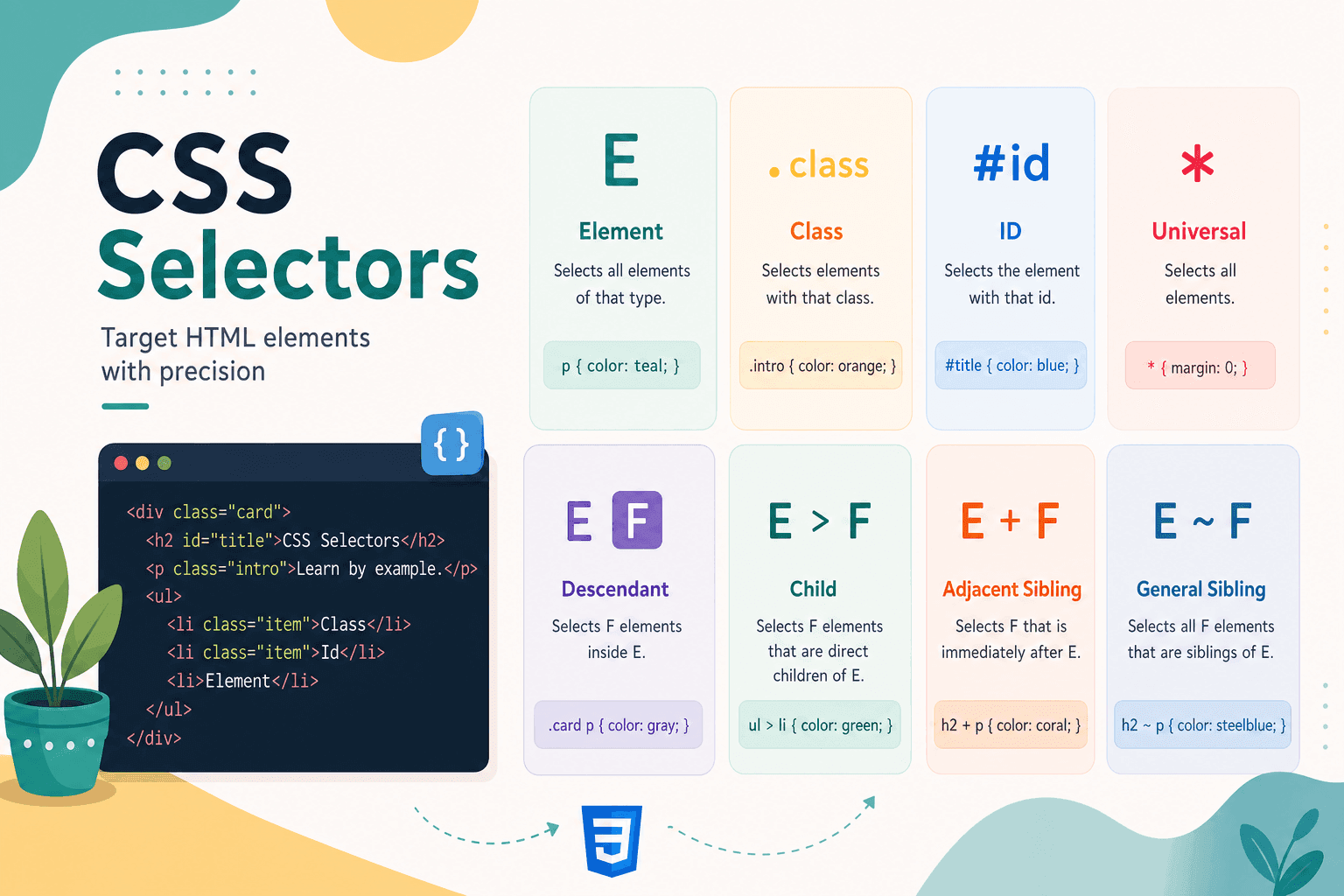
What Are CSS Selectors?
Quick Answer
CSS selectors are patterns that match HTML elements so that style rules can be applied to them. They are the first part of a CSS rule, before the curly braces. Every selector targets elements based on their type, class, ID, attributes, state, position in the DOM, or relationship to other elements.
A CSS rule has two parts: a selector and a declaration block. The selector tells the browser which elements to style; the declaration block tells it how to style them. Without selectors, you cannot write CSS — they are the targeting mechanism the entire language depends on.
The W3C CSS Selectors Level 4 specification defines nine categories of selector: type (element), class, ID, universal, attribute, pseudo-class, pseudo-element, grouping, and combinator. Understanding all nine gives you precise, maintainable control over your stylesheets and eliminates the need for unnecessary extra classes.
Modern CSS selectors have expanded significantly. The :has() parent selector (now in all major browsers since 2023) and the :is() and :where() forgiving selectors have changed how developers write complex stylesheets. This guide covers both the fundamentals and the latest additions.
MDN reference: The MDN CSS Selectors documentation is the most comprehensive browser-compatibility reference for every selector covered in this guide. Each selector entry lists exact browser support versions and any known parsing quirks.
1Basic Selectors: Element, Class, and ID
Quick Answer
Element selectors target HTML tags (p, h1). Class selectors (.classname) are reusable across many elements and carry specificity 0,0,1,0. ID selectors (#idname) must be unique per page and carry the highest non-inline specificity at 0,1,0,0. Classes are preferred for styling; IDs for unique page anchors.
The three foundational selector types form the basis of every stylesheet. They are the first selectors developers learn and the ones most frequently used in production code. Understanding when to use each one — and how their specificity interacts — prevents the majority of CSS specificity conflicts.
Element Selectors
An element selector matches all HTML elements of a given type. It is the simplest selector and the lowest in specificity. Use element selectors to establish typographic defaults and reset browser styles — applying them to specific UI components introduces the brittleness of global styles.
/* Element selector — targets all <p> tags */p { font-size: 16px; line-height: 1.6;} /* Element selector — targets all <h2> tags */h2 { font-size: 24px; font-weight: 600;}Class Selectors
Class selectors are the workhorse of modern CSS. They are reusable (the same class can appear on hundreds of elements), composable (an element can carry multiple classes), and carry a specificity that is easy to reason about. Utility-first frameworks like Tailwind CSS are built entirely on class selectors.
/* Class selector — reusable, apply to many elements */.btn { display: inline-block; padding: 10px 20px; border-radius: 4px; background: #1D9E75; color: #fff;} /* Multiple classes on one element */.btn.btn--large { padding: 14px 28px; font-size: 18px;}ID Selectors
ID selectors have a specificity of 0,1,0,0 — significantly higher than classes. This high specificity makes them difficult to override without reaching for !important or stacking additional classes. Best practice in modern CSS is to reserve IDs for unique page landmarks (navigation, main content, footer), skip-links for accessibility, and JavaScript hooks — not for routine styling.
/* ID selector — must be unique per page */#site-header { position: sticky; top: 0; z-index: 100; background: #fff;} /* ID carries higher specificity than class */#hero-title { font-size: clamp(32px, 5vw, 64px);}2Universal and Grouping Selectors
Quick Answer
The universal selector * matches every element on the page and has zero specificity. It is most useful in CSS resets (*, *::before, *::after). Grouping selectors use a comma to apply the same declarations to multiple selectors in one rule, reducing repetition. Both are fully supported in all browsers.
These two selector types are about efficiency. The universal selector gives you a single hook to apply baseline rules to every element simultaneously — a common pattern in modern CSS resets. Grouping selectors let you co-locate related rules without repeating declarations.
/* Universal selector — matches every element */* { box-sizing: border-box; margin: 0; padding: 0;} /* Grouping selector — same styles for multiple selectors */h1,h2,h3,h4 { font-family: var(--font-display); font-weight: 600; line-height: 1.2;}The modern CSS reset popularised by Andy Bell (“A Modern CSS Reset”) and Josh Comeau (“A Modern CSS Reset”) both make heavy use of the universal selector. The box-sizing: border-box rule applied via *, *::before, *::afteris now considered standard practice — it ensures padding and border are included in an element’s declared width, eliminating a major source of layout bugs.
Performance note: The universal selector * used as a key selector (the rightmost part of a selector) forces the browser to match against every element in the DOM. Use it sparingly in production CSS. Scoped as .container * it is less expensive than a bare * but still broader than necessary in most cases.
3Combinator Selectors
Quick Answer
Combinator selectors target elements based on their DOM relationship. A space selects any descendant. The > combinator selects only direct children. The + combinator selects the immediately adjacent sibling. The ~ combinator selects all subsequent siblings at the same level. Combinators add zero specificity of their own.
Combinators are what make CSS selectors genuinely powerful. Without them, you would need to add a class to every element you want to style. With them, you can express complex targeting rules — “style the paragraph immediately after a heading”, “style all checked items after the active item” — entirely in CSS, based on document structure.
/* Descendant (space) — any nested .link inside .nav */.nav .link { color: #333;} /* Child (>) — only direct <li> children of <ul> */ul > li { list-style: none;} /* Adjacent sibling (+) — <p> immediately after <h2> */h2 + p { margin-top: 8px; font-size: 17px; color: #555;} /* General sibling (~) — all <li> after .active in same parent */.active ~ li { opacity: 0.5;}The descendant combinator (space) is the most common but also the broadest — it matches a nested element at any depth. The child combinator (>) is more precise, matching only direct children. Prefer the child combinator when you want to avoid accidentally styling deeply nested elements that happen to match.
The adjacent sibling combinator (+) is excellent for contextual spacing: styling the element that immediately follows a heading differently from other paragraphs. The general sibling combinator (~) powers many pure-CSS UI patterns, like dimming sibling items after a selected one in a list. If you are curious how CSS combinators interact with layouts, see our guide on CSS Grid vs Flexbox.
4Attribute Selectors
Quick Answer
Attribute selectors target elements by their HTML attributes. Five variants: [attr] (attribute exists), [attr="val"] (exact match), [attr^="val"] (starts with), [attr$="val"] (ends with), [attr*="val"] (contains). They have the same specificity as class selectors (0,0,1,0) and require no extra classes in your HTML.
Attribute selectors are one of the most underused features of CSS. They let you style elements based on their HTML attributes without adding any classes, keeping your markup clean and your CSS self-documenting. They are particularly valuable for styling form inputs, links, and data-attribute-driven UI patterns.
/* [attr] — elements with the attribute present */a[target] { /* any <a> that has a target attribute */ text-decoration: underline;} /* [attr="val"] — exact value match */input[type="checkbox"] { width: 18px; height: 18px;} /* [attr^="val"] — value starts with */a[href^="https"] { /* secure external links */ color: #1D9E75;} /* [attr$="val"] — value ends with */a[href$=".pdf"] { /* PDF download links */ padding-right: 20px; background: url('/icons/pdf.svg') right center no-repeat;} /* [attr*="val"] — value contains substring */[class*="icon-"] { display: inline-flex; align-items: center;}The [attr^="val"] and [attr$="val"] variants are especially useful for links: you can style all links to HTTPS domains with a lock icon, all PDF links with a document indicator, and all external links with an arrow — all without JavaScript and without touching the markup. Add i before the closing bracket for case-insensitive matching: [href$=".PDF" i].
Data attributes (data-*) work identically with attribute selectors. This makes them a clean way to drive CSS states from JavaScript: set data-state="loading" in JS and target [data-state="loading"] in CSS. It is more semantic than toggling classes and keeps style concerns in the stylesheet. You can explore how CSS custom properties interact with dynamic states in our guide on CSS Custom Properties.
5Pseudo-Class Selectors
Quick Answer
Pseudo-class selectors (single colon prefix) target elements based on their state or DOM position. Key pseudo-classes: :hover, :focus, :nth-child(n), :first-child, :last-child, :not(), :is(), and :has(). They have the same specificity as class selectors and require no changes to your HTML.
Pseudo-classes expand CSS from a static styling language into one that responds to user interaction, accessibility states, and document structure. They are the primary tool for building interactive UI without JavaScript — hover effects, focus rings, zebra-striped tables, conditional parent styles — all achievable with pseudo-classes alone.
/* :hover — mouse pointer over element */.btn:hover { background: #17875f; transform: translateY(-1px);} /* :focus — element has keyboard/click focus */input:focus { outline: 2px solid #1D9E75; outline-offset: 2px;} /* :nth-child(n) — every 2nd row */tr:nth-child(even) { background: #f8f9fa;} /* :first-child and :last-child */li:first-child { border-top: none; }li:last-child { border-bottom: none; } /* :not() — all buttons except .disabled */.btn:not(.disabled):hover { cursor: pointer;} /* :is() — forgiving selector list (2022+) */:is(h1, h2, h3) > a { text-decoration: none;} /* :has() — parent selector (2023+) */.card:has(img) { padding-top: 0; /* card that contains an image */}:is() and :where() — Forgiving Selector Lists
:is() accepts a selector list and matches any element that matches any selector in the list. Unlike a plain comma-separated list, if one selector in the :is() list is invalid, the whole rule does not fail — the browser simply ignores the invalid entry. The specificity of :is() equals the specificity of its most specific argument.
:where() behaves identically but always contributes zero specificity — making it ideal for base styles and resets that should be easy to override. Both :is() and :where() are in all major browsers since 2021.
:has() — The Parent Selector
:has() was the most requested CSS feature for over a decade. It selects an element based on whether it contains a matching descendant. This enables true “parent selector” behaviour in CSS: style a card differently if it contains an image, style a form group if it contains an invalid input, remove padding from a section with no headings. Available in all major browsers since late 2023, :has() eliminates entire categories of previously JavaScript-only UI logic.
Focus management tip: Always style both :hover and :focus (or use :focus-visible) together for interactive elements. Keyboard users navigate with Tab and rely on visible focus indicators. Removing the default outline (outline: none) without providing an equivalent :focus style is an accessibility violation under WCAG 2.1.
6Pseudo-Element Selectors
Quick Answer
Pseudo-elements (double colon prefix) style specific parts of an element or insert generated content into the DOM. The five most-used: ::before and ::after (insert content), ::first-line (style the first rendered line), ::placeholder (style input placeholder text), and ::selection (style user-selected text).
Pseudo-elements differ from pseudo-classes in a fundamental way: they create a virtual element in the render tree rather than selecting an existing element based on state or position. This is why they use the double colon syntax — to make the distinction clear. (Single colons still work in browsers for legacy reasons, but double colons are the modern standard.)
/* ::before — insert content before element */.required-label::before { content: "* "; color: #e53e3e;} /* ::after — insert content after element */.external-link::after { content: " ↗"; font-size: 0.75em;} /* ::first-line — style only the first line of a paragraph */p::first-line { font-weight: 600; letter-spacing: 0.02em;} /* ::placeholder — style input placeholder text */input::placeholder { color: #a0aec0; font-style: italic;} /* ::selection — style text highlighted by the user */::selection { background: rgba(29, 158, 117, 0.25); color: inherit;}::before and ::after
These are the most used pseudo-elements. They insert a generated content box immediately before or after the element’s content. The content property is required — even if empty (content: ""). Common uses include decorative icons, quotation marks, clearfix hacks (now obsolete with Flexbox and Grid), and accessible visually hidden text. They can be positioned, animated, and styled like any other element.
::placeholder and ::selection
::placeholder lets you style the placeholder text in form inputs — useful for ensuring sufficient contrast and maintaining brand typography. ::selection styles the background and text colour when users highlight content on the page. Customising ::selection with your brand colour is a small touch that gives interfaces a polished feel. Check our article on CSS layout fundamentals for more on how pseudo-elements interact with layout.
7CSS Selector Specificity Quick Reference
Quick Answer
Specificity is calculated as four numbers: (inline styles, ID count, class/attribute/pseudo-class count, element/pseudo-element count). A higher score wins regardless of source order. Inline styles always win. Use :where() for zero-specificity base styles and avoid !important except to override third-party styles.
Specificity is the algorithm browsers use to decide which CSS rule applies when multiple rules target the same element and property. Understanding it prevents the frustrating experience of rules “not working” — in almost every case, a higher-specificity rule is silently winning the conflict.
| Selector type | Example | Specificity |
|---|---|---|
| Inline style | style="color: red" | 1,0,0,0 |
| ID selector | #header | 0,1,0,0 |
| Class / pseudo-class / attribute | .btn :hover [type] | 0,0,1,0 |
| Element / pseudo-element | p ::before | 0,0,0,1 |
| Universal selector | * | 0,0,0,0 |
/* Specificity: (inline, ID, class, element) */ p /* 0,0,0,1 — one element *//* 0,0,0,1 — one element */.link /* 0,0,1,0 — one class *//* 0,0,1,0 — one class */#header /* 0,1,0,0 — one ID *//* 0,1,0,0 — one ID */#header .link /* 0,1,1,0 — ID + class *//* 0,1,1,0 — ID + class */#header .link:hover /* 0,1,2,0 — ID + class + pseudo-class *//* 0,1,2,0 — ID + class + pseudo-class */ /* :where() always has 0 specificity — useful for resets */:where(h1, h2, h3) { font-weight: 600; } /* 0,0,0,0 *//* 0,0,0,0 */ /* :is() takes the specificity of its MOST specific argument */:is(#header, .nav) a { color: red; } /* 0,1,0,1 *//* 0,1,0,1 */When two rules have equal specificity, the rule that appears later in the stylesheet wins — this is the cascade. When specificity differs, the higher-specificity rule always wins regardless of order. The !important annotation overrides all specificity calculations but creates its own maintenance problems — any subsequent override also requires !important, leading to specificity wars.
The modern approach is to keep specificity consistently low across your stylesheet by using classes as the primary selector type and avoiding ID selectors for styling. When you need zero specificity for base styles (resets, defaults), use :where() — it applies no specificity weight at all. For CSS custom property patterns, see our dedicated guide on CSS Custom Properties and Variables.
8Selector Performance Best Practices
Quick Answer
Browsers read selectors right-to-left. Avoid the universal selector as a key selector and deep descendant chains. Prefer single class selectors over multi-level combinator chains. Keep selectors to three levels or fewer. In practice, selector performance rarely bottlenecks modern apps — but writing efficient selectors also makes CSS more readable and maintainable.
CSS selector performance is rarely a practical bottleneck in modern applications — browser rendering engines have become highly optimised. However, understanding how browsers parse selectors helps you write CSS that is both performant and easier to reason about. The two goals align: efficient selectors are also simpler selectors.
Browsers parse selectors right-to-left. Given the selector .nav .link, the browser first finds all elements matching .link, then checks if each one has an ancestor matching .nav. This means the rightmost selector (the “key selector”) determines how many elements the browser must initially consider. A universal key selector (* ) means the browser starts with every element on the page.
/* SLOW — universal descendant chain */* div p a { color: blue; } /* browser walks entire DOM */div * { margin: 0; } /* too broad *//* too broad */ /* SLOW — deep descendant chains */.page .content .article .body p { font-size: 16px; } /* FAST — single class selector */.article-body-text { font-size: 16px; } /* FAST — direct child instead of descendant */.nav > .nav-item { display: flex; } /* FAST — class on element */p.intro { font-size: 18px; } /* RULE: keep selectors to 3 levels or fewer, prefer classes, avoid * as key selector */Practical guidelines for selector performance and maintainability:
| Guideline | Reason |
|---|---|
| Prefer class selectors | Low specificity, high reusability, good performance |
| Avoid * as key selector | Forces the browser to consider every DOM element |
| Limit descendant depth to 3 levels | Reduces DOM walking; forces better architecture |
| Use > instead of space where possible | More precise, prevents unintended deep matches |
| Avoid qualifying class with element | div.card is slower than .card and less reusable |
| Use :is() for long selector lists | Single parse for multiple targets; more readable |
The single most impactful performance and maintainability improvement you can make to a large stylesheet is to flatten its selector specificity: replace long combinator chains with single, well-named classes. This is the core philosophy behind BEM (Block Element Modifier) naming, which remains widely used in large-scale CSS architectures.
Frequently Asked Questions
- What is the difference between a class selector and an ID selector in CSS?
- A class selector (
.classname) can be applied to multiple elements on the same page and carries a specificity of 0,0,1,0. An ID selector (#idname) must be unique per page and carries a higher specificity of 0,1,0,0. Use classes for reusable styles and IDs only when you need a unique anchor, skip-link target, or JavaScript hook. Styling via IDs creates high-specificity rules that are difficult to override without!important. - How do CSS combinator selectors work?
- CSS combinators define relationships between selectors. A space (descendant combinator) targets any nested element at any depth. The
>(child combinator) targets only direct children. The+(adjacent sibling combinator) targets the immediately following sibling. The~(general sibling combinator) targets all following siblings at the same nesting level. Combinators let you write precise selectors based on DOM structure without adding extra classes to your HTML. - What are CSS pseudo-class selectors?
- Pseudo-class selectors target elements based on their state or structural position rather than their HTML attributes or classes. Common examples include
:hover(mouse pointer over the element),:focus(keyboard or click focus),:nth-child(n)(positional targeting),:not(selector)(negation),:is(list)(forgiving selector list), and:has(selector)(parent selector, available in all browsers since 2023). Pseudo-classes are written with a single colon prefix. - What is CSS specificity and how is it calculated?
- CSS specificity determines which rule wins when multiple rules target the same element and property. It is calculated as a four-part score: (inline styles, ID selector count, class/attribute/pseudo-class count, element/pseudo-element count). For example,
#nav .link:hoverscores 0,1,2,0 — one ID, one class, one pseudo-class. Higher scores always override lower scores regardless of rule order in the stylesheet. Inline styles beat everything short of!important. - Which CSS selectors have the best performance?
- Class selectors (
.classname) offer the best balance of specificity and performance. Browsers parse selectors right-to-left, so avoid universal descendant chains like* div pwhich force the browser to walk the full DOM. Prefer.parent > .childover.parent div p. Avoid the universal selector*as a key selector. In practice, selector performance rarely bottlenecks modern apps — but short, class-based selectors are also easier to read and maintain.
Conclusion
CSS selectors are the most fundamental part of any stylesheet. Mastering all nine selector types — element, class, ID, universal, grouping, combinator, attribute, pseudo-class, and pseudo-element — gives you precise targeting capabilities that reduce the need for extra markup, extra JavaScript, and extra complexity in your codebase.
Start with the basics: use element selectors for typographic defaults, class selectors for all component styling, and ID selectors only for unique page landmarks. Layer in attribute selectors to style form inputs and links without extra classes. Use pseudo-classes to handle user interaction and structural targeting. Add pseudo-elements for generated content and decorative details.
Keep specificity low and consistent. Prefer :where() for zero-specificity base styles and :is() for readable multi-target rules. Reach for :has() when you need parent-conditional styling — it replaces entire patterns that previously required JavaScript.
To continue building your CSS knowledge, read our related guides: CSS Custom Properties and Variables, CSS Grid vs Flexbox, and How to Center a Div in CSS. For practical CSS tooling, explore the free tools directory at CSSAwwwards.
Share this article